Change or reset your password
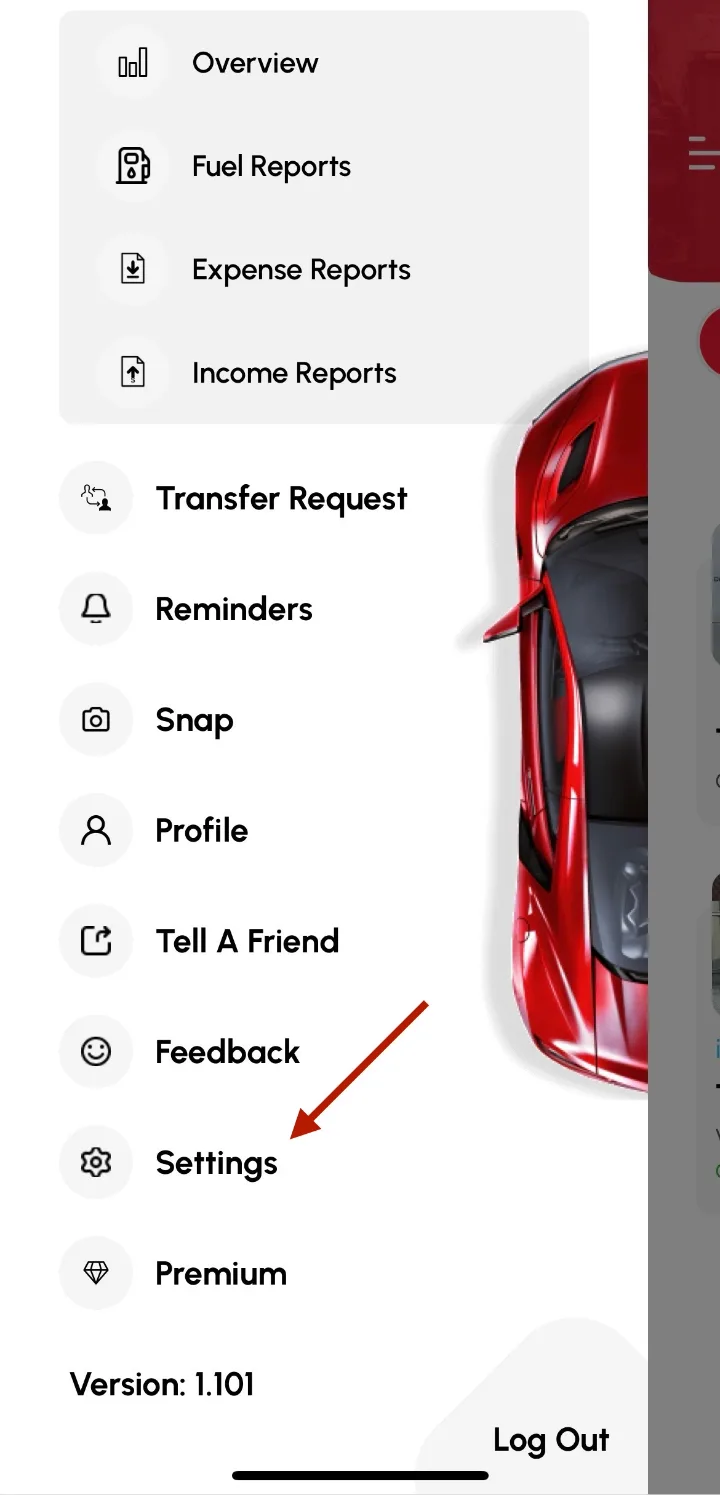
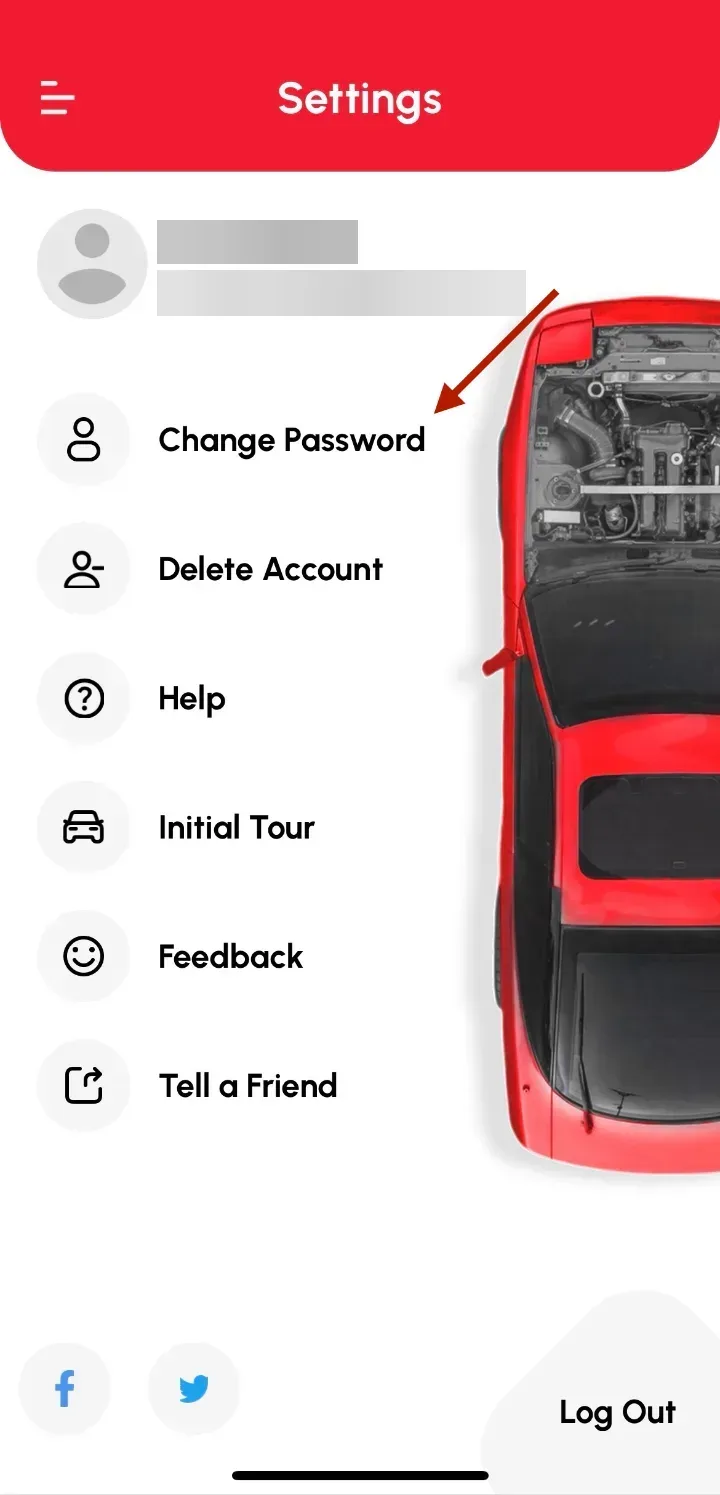
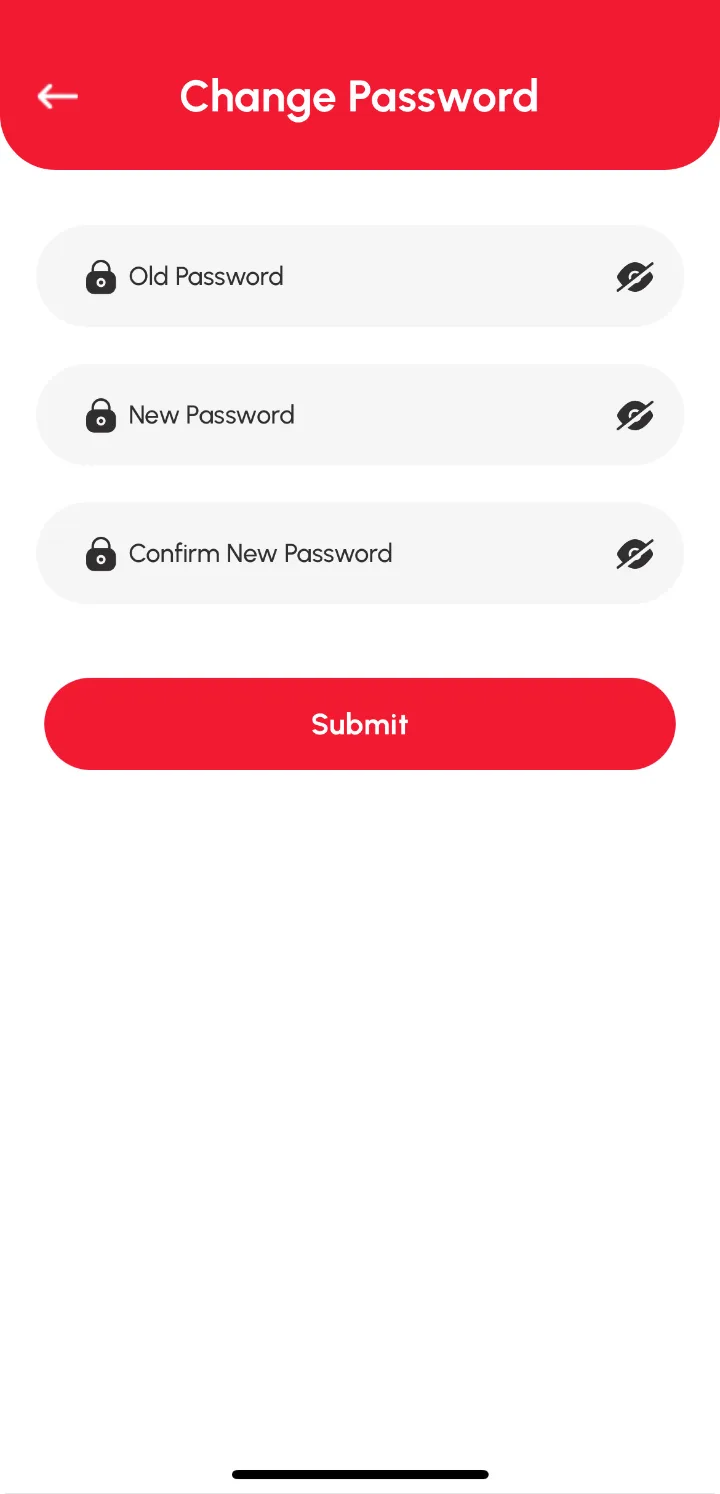
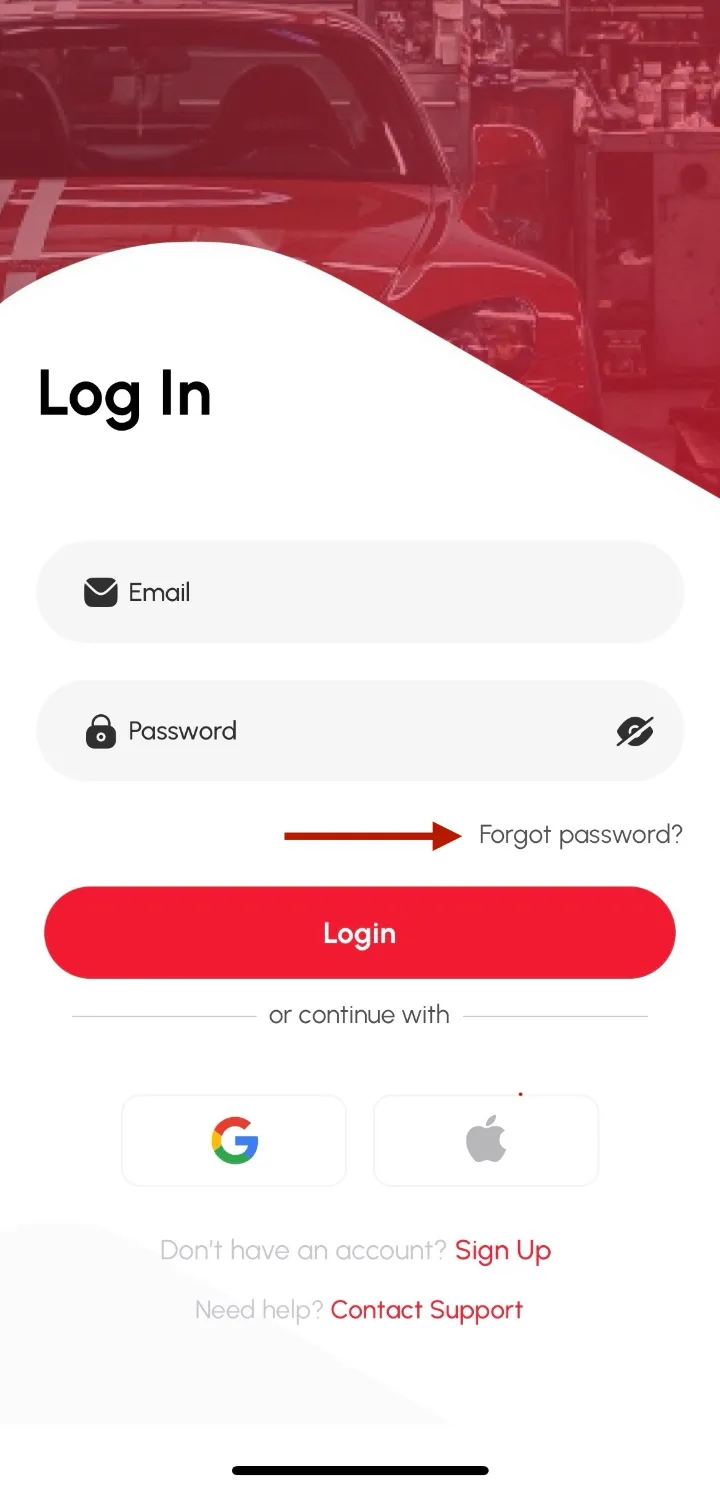
To change your password in Loggy, open the top-left menu, go to Settings › Change Password, enter your old and new password, and tap Submit. Forgotten your old one? Log out, tap Forgot password? on the Log In page, and follow the code we email you.
Change your password (you know your old one)
- Tap the top-left drawer menu.
- Go to Settings.
- Select Change Password.
- Enter your Old Password.
- Enter your New Password and Confirm New Password.
- Tap Submit.
Your password is updated as soon as the change saves.
Reset your password (you’ve forgotten it)
- Log out of your account.
- Tap Forgot password? on the Log In page.
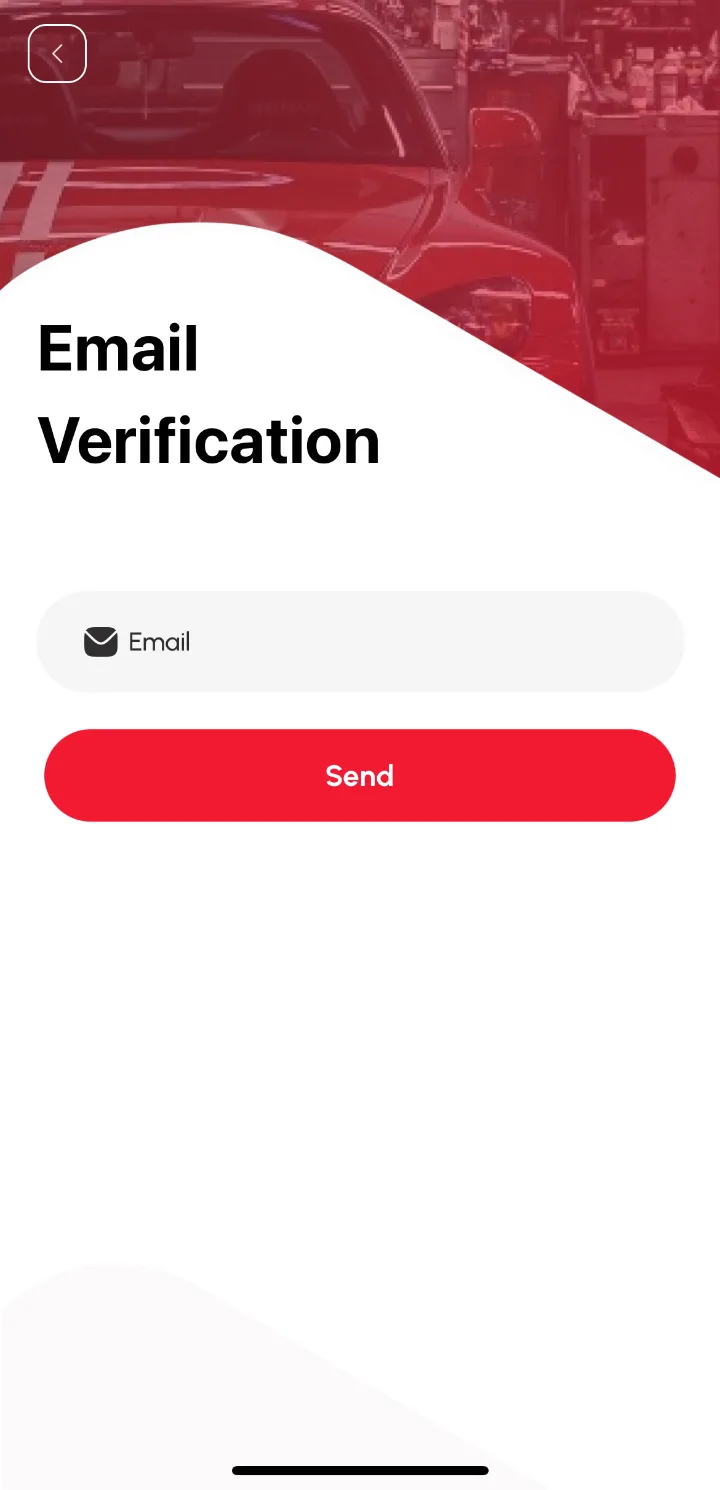
- Enter your email for verification.
- Enter the code (OTP) we send to your email.
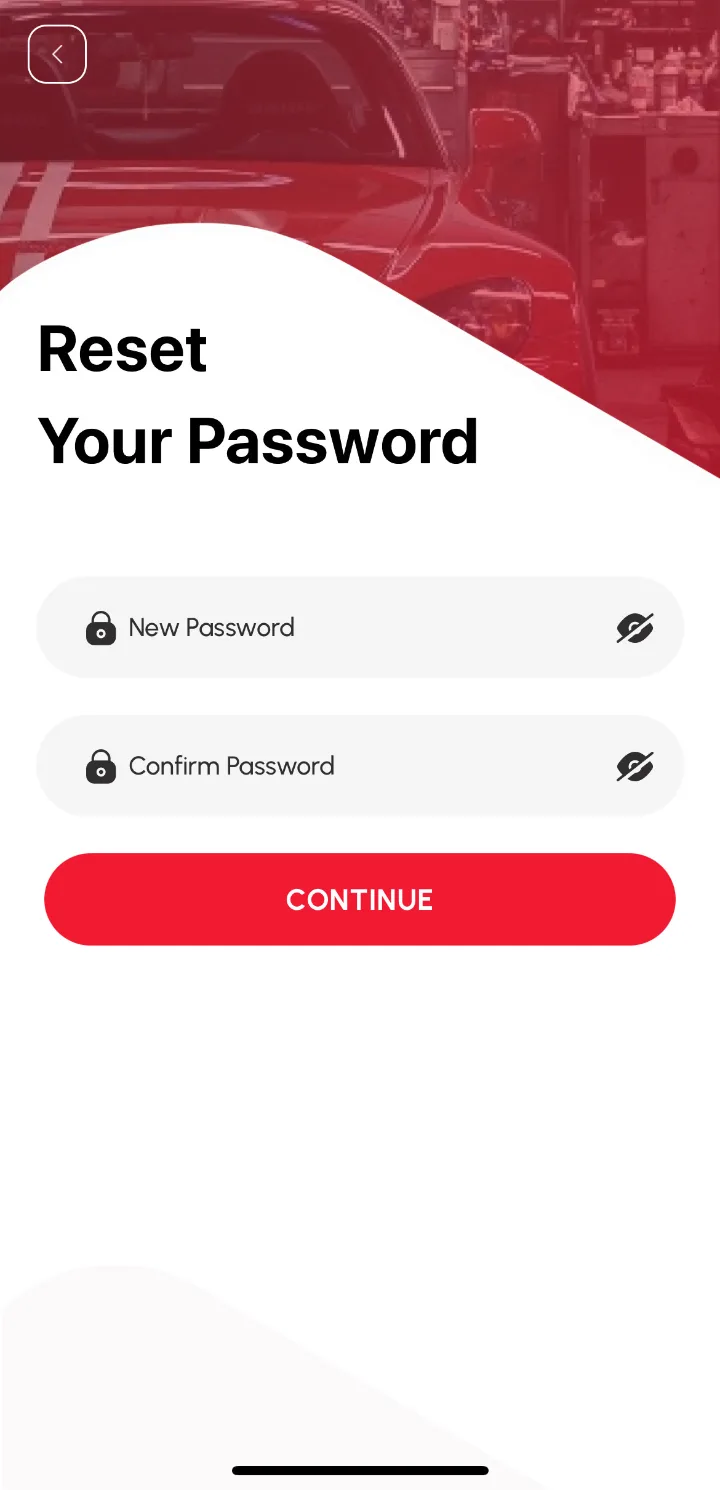
- Enter your New Password and Confirm Password.
- Tap CONTINUE.
You can now log in with your new password.
FAQs
Q: I didn’t get the reset code. What now? A: Check your Spam or Junk folder, as the email sometimes gets flagged by mistake. Still nothing? Email support@loggy.com.