Snaps: capture photos and videos instantly
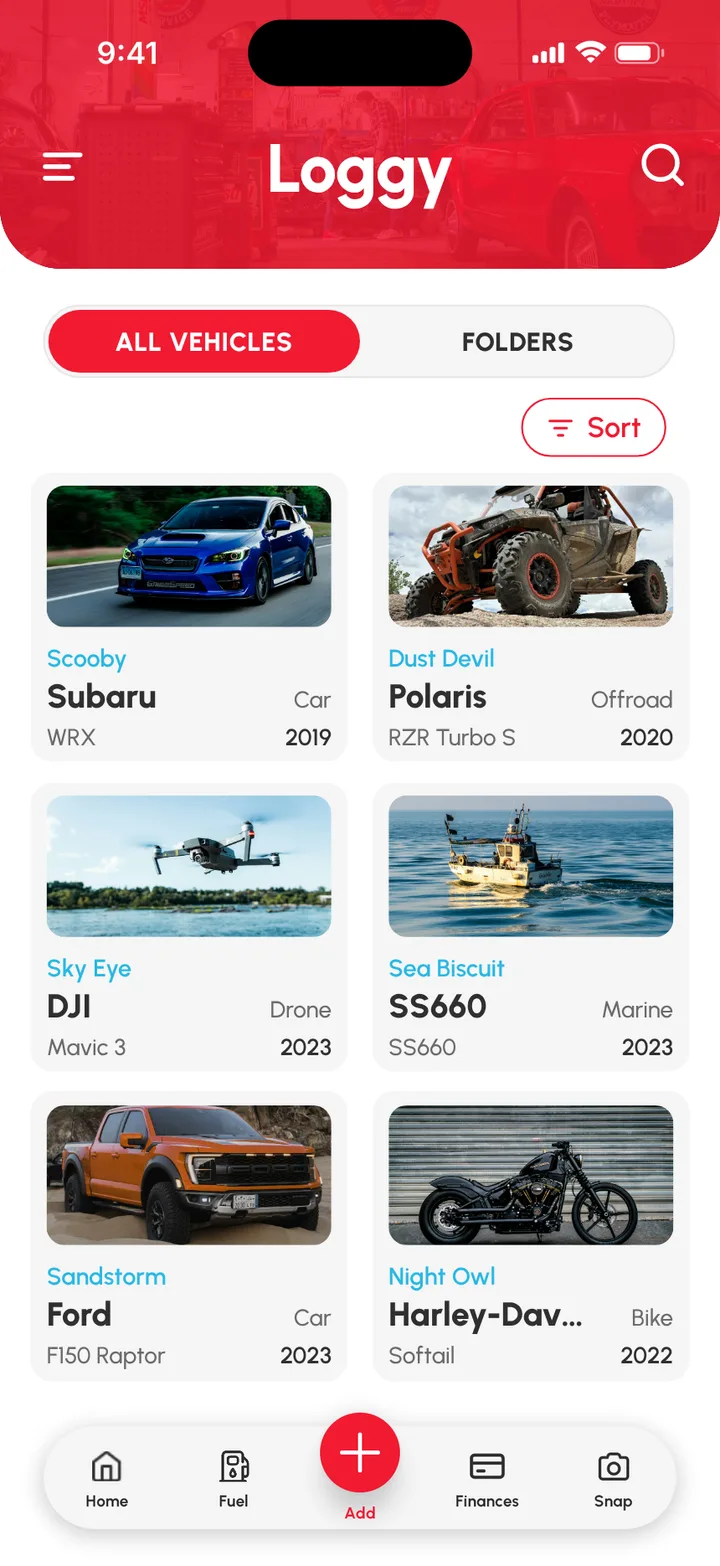
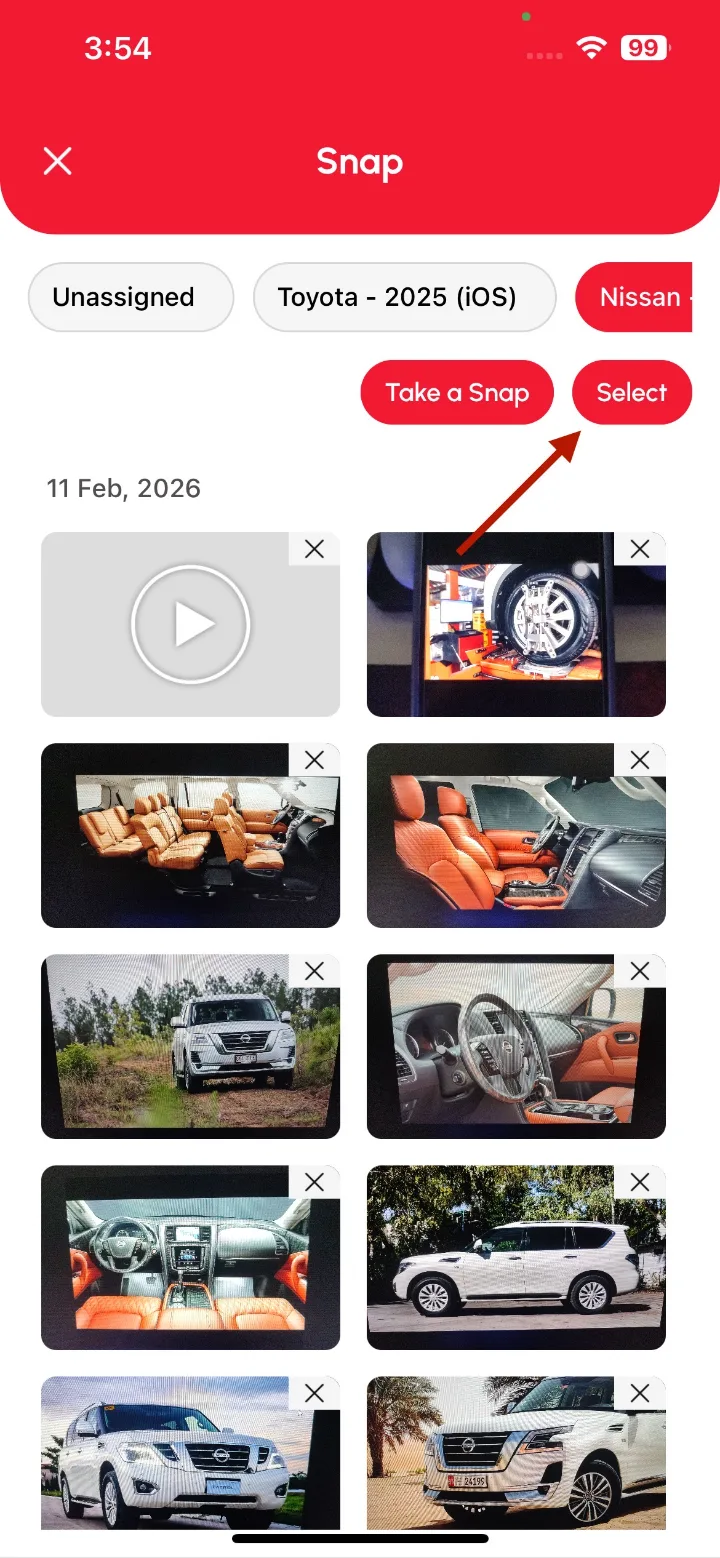
Snaps lets you grab a photo or video in one tap to record a vehicle’s condition, an incident, a delivery or anything worth keeping. Tap the Snap tab on the bottom bar, then Take a Snap. You can attach snaps to a log or the vehicle’s thumbnail later.
Take a Snap
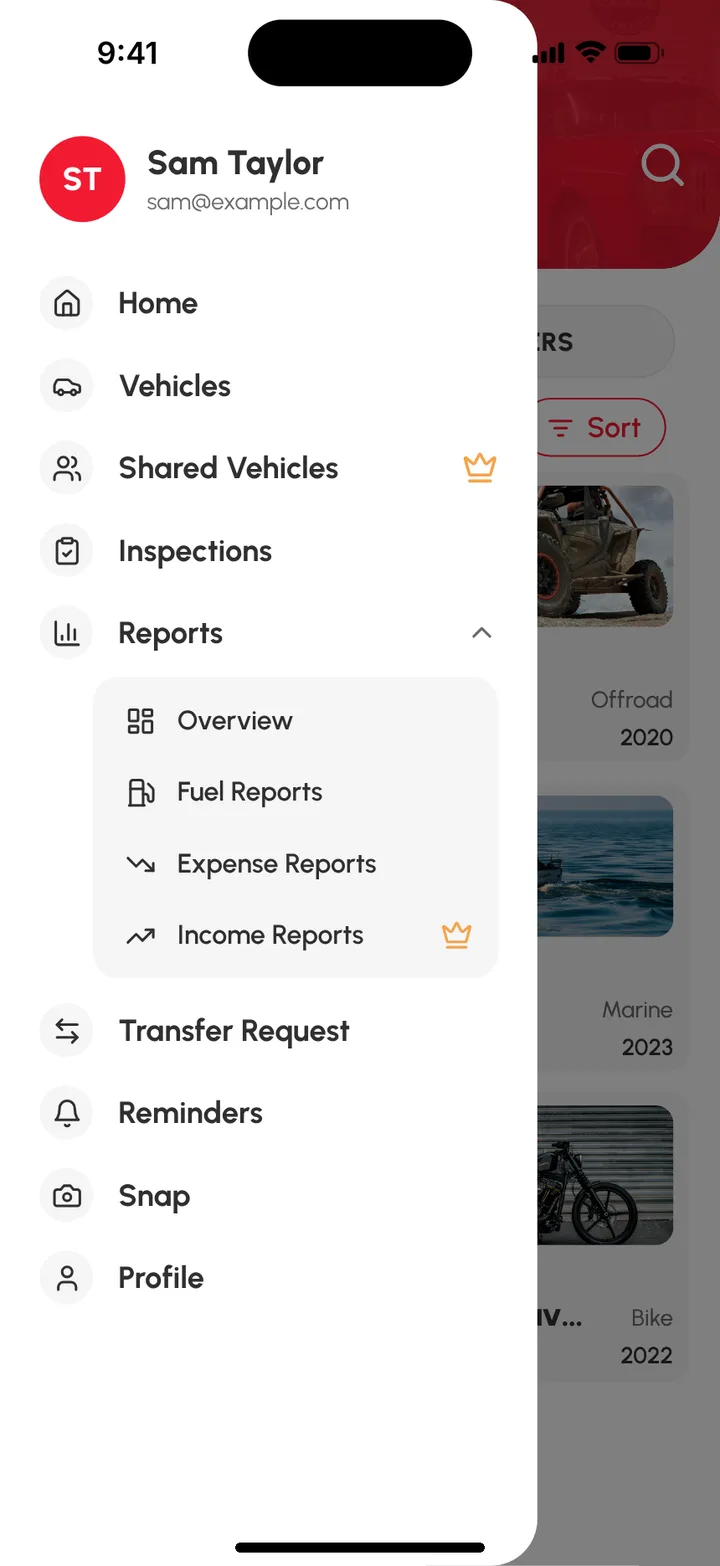
- Tap the Snap tab on the bottom bar, or open the top-left menu and tap Snap. You can also tap the red Add (+) button and choose Add Snap.
- Tap Take a Snap.
- Choose a vehicle, or skip.
- Capture your photo or video.
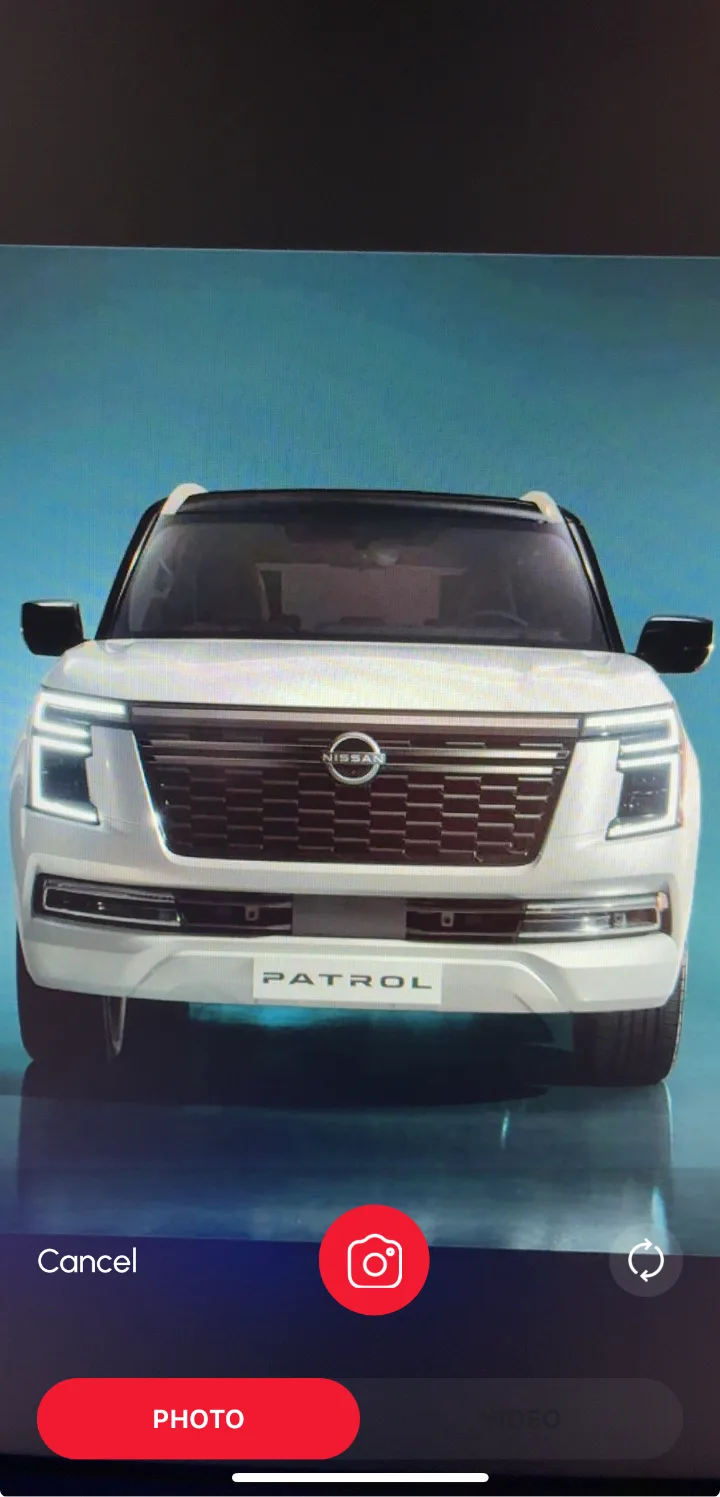
Snaps are saved to the vehicle’s album, or to the unassigned album if you skipped choosing a vehicle.
Use a snap as the vehicle’s thumbnail
- Open the top-left menu and tap Snap.
- Tap Select in the top-right corner.
- Select the photo(s) you want.
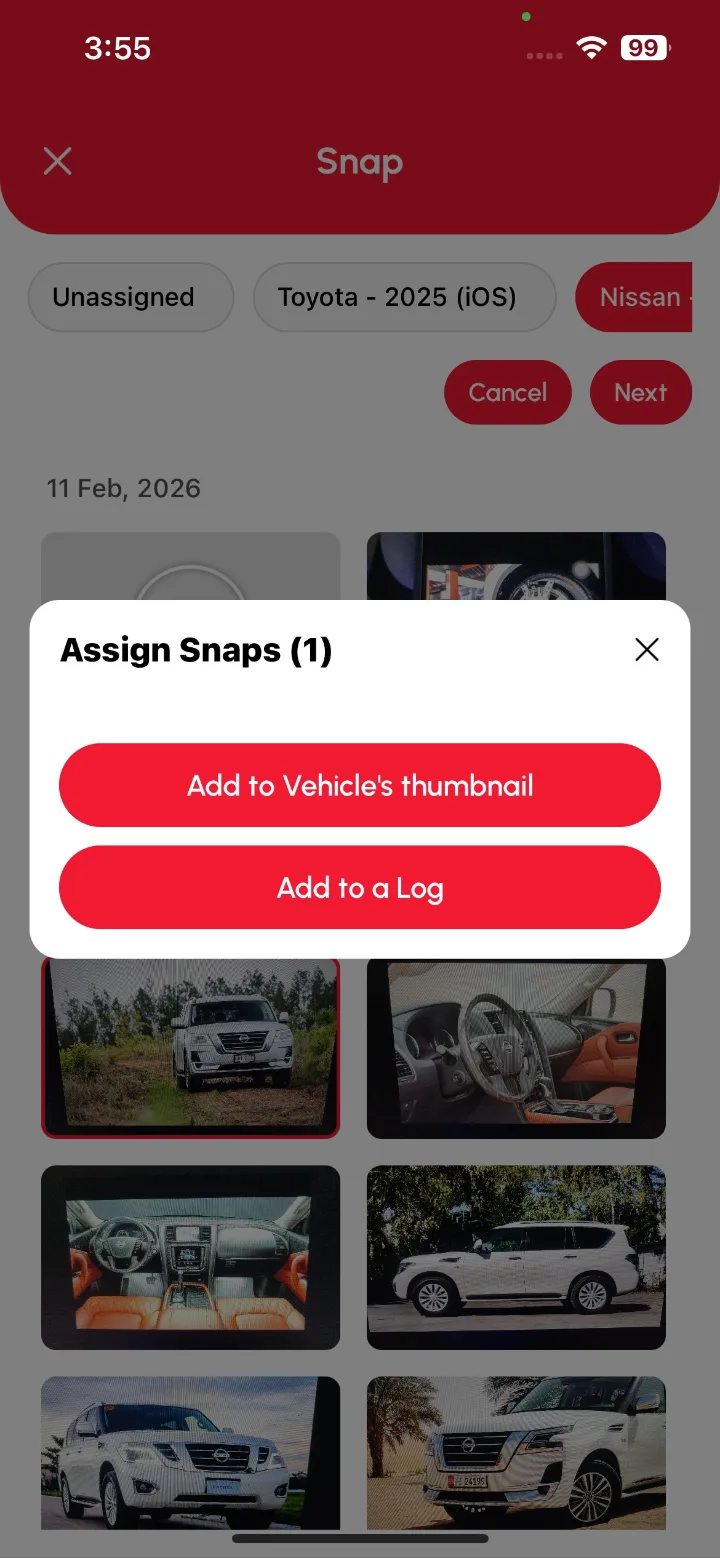
- On the Assign Snaps pop-up, choose a vehicle (not needed if you’re already in that vehicle’s album).
- Tap Add to Vehicle’s thumbnail.
Attach snaps to a log
- Open the top-left menu and tap Snap.
- Tap Select in the top-right corner.
- Select the photos and videos you want.
- On the Assign Snaps pop-up, choose a vehicle (not needed if you’re already in that vehicle’s album).
- Tap Add to a Log.
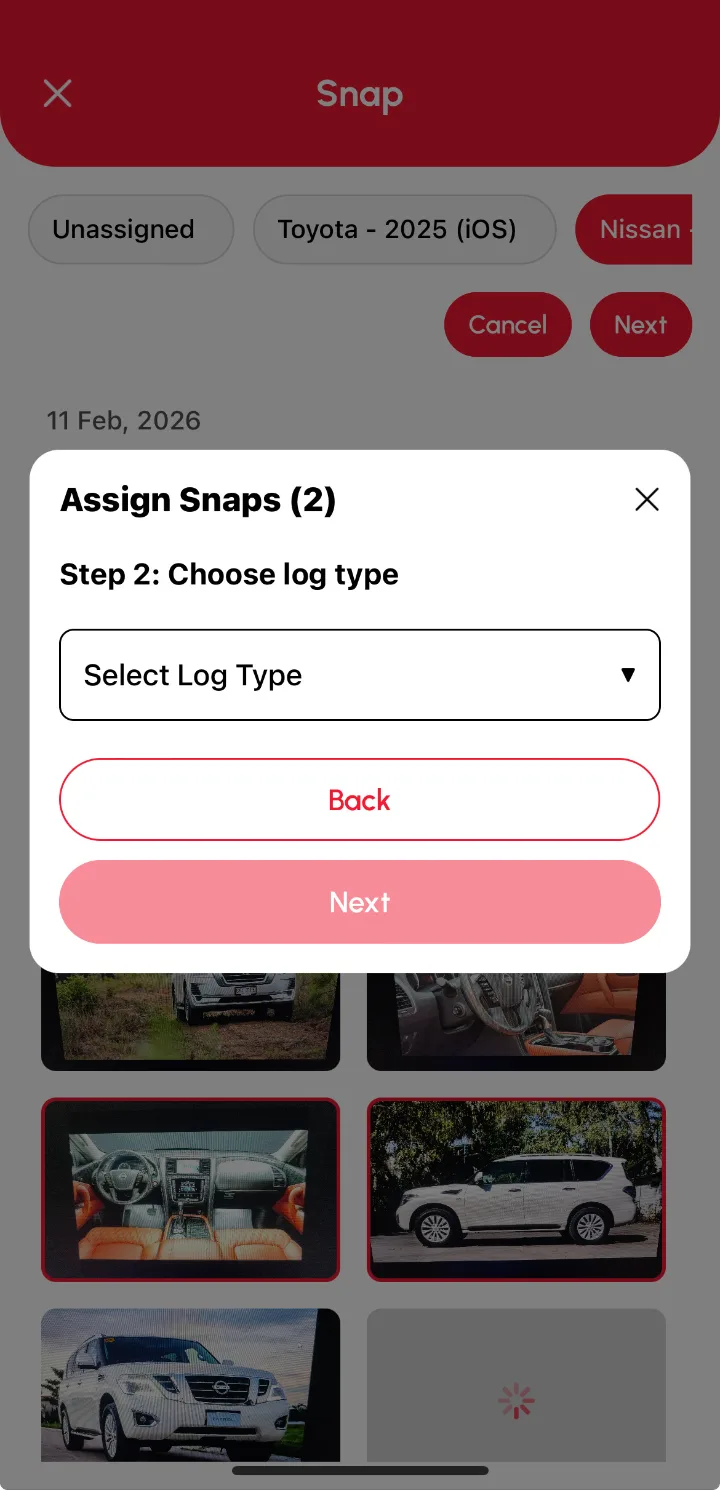
- Pick the log type and tap Next.
- Complete the form and save.
Your new log is created with the snaps attached.
Add snaps while you’re filling in a log
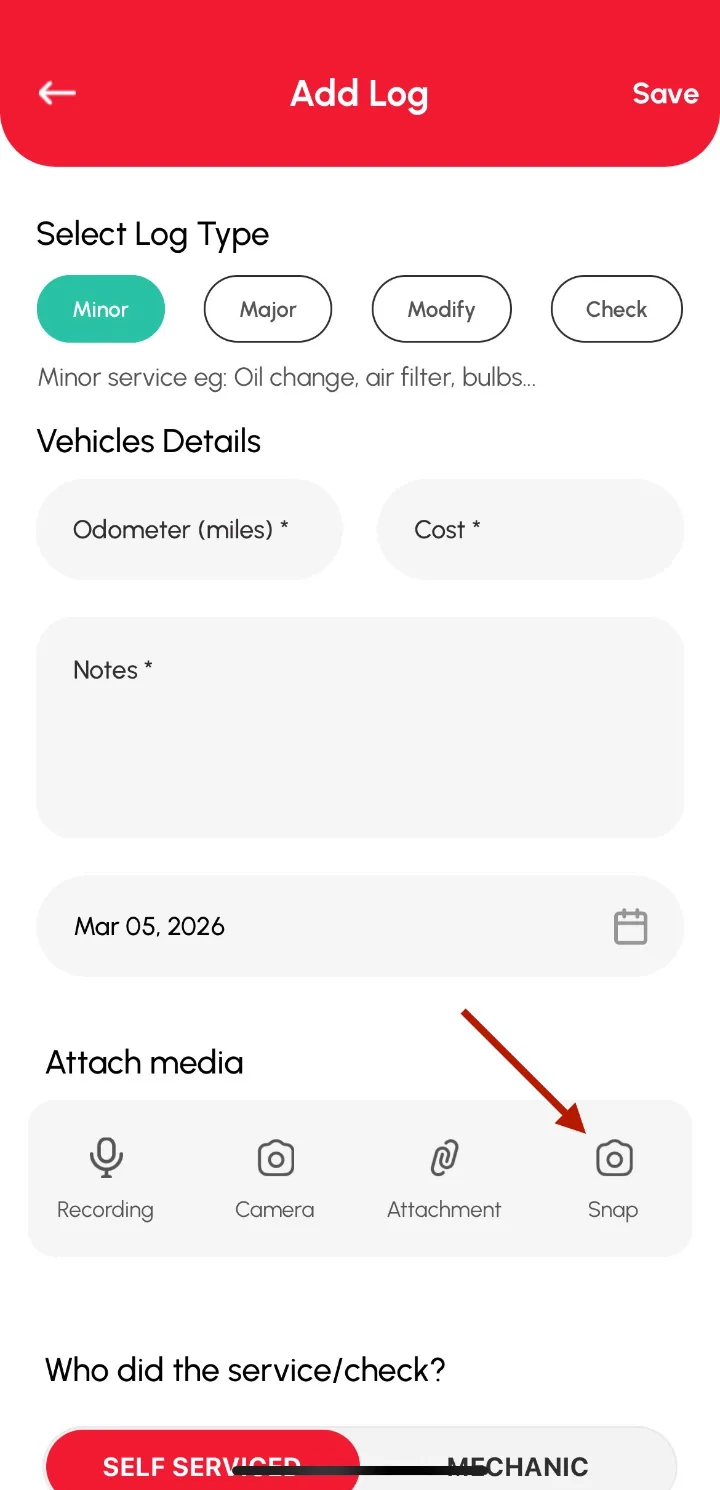
On any add-log form, tap the Snap icon in the Attach media section to pick from your unassigned and vehicle albums.