Track expenses and income
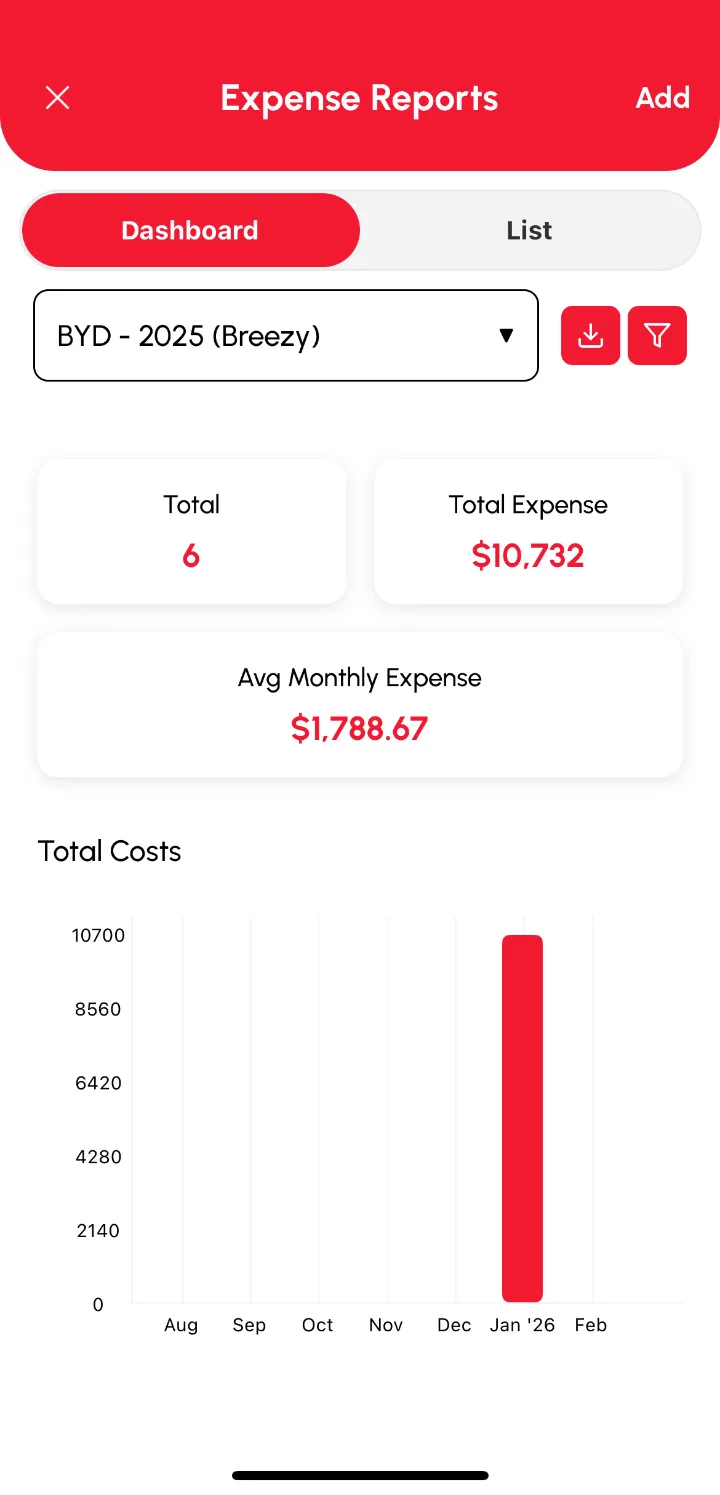
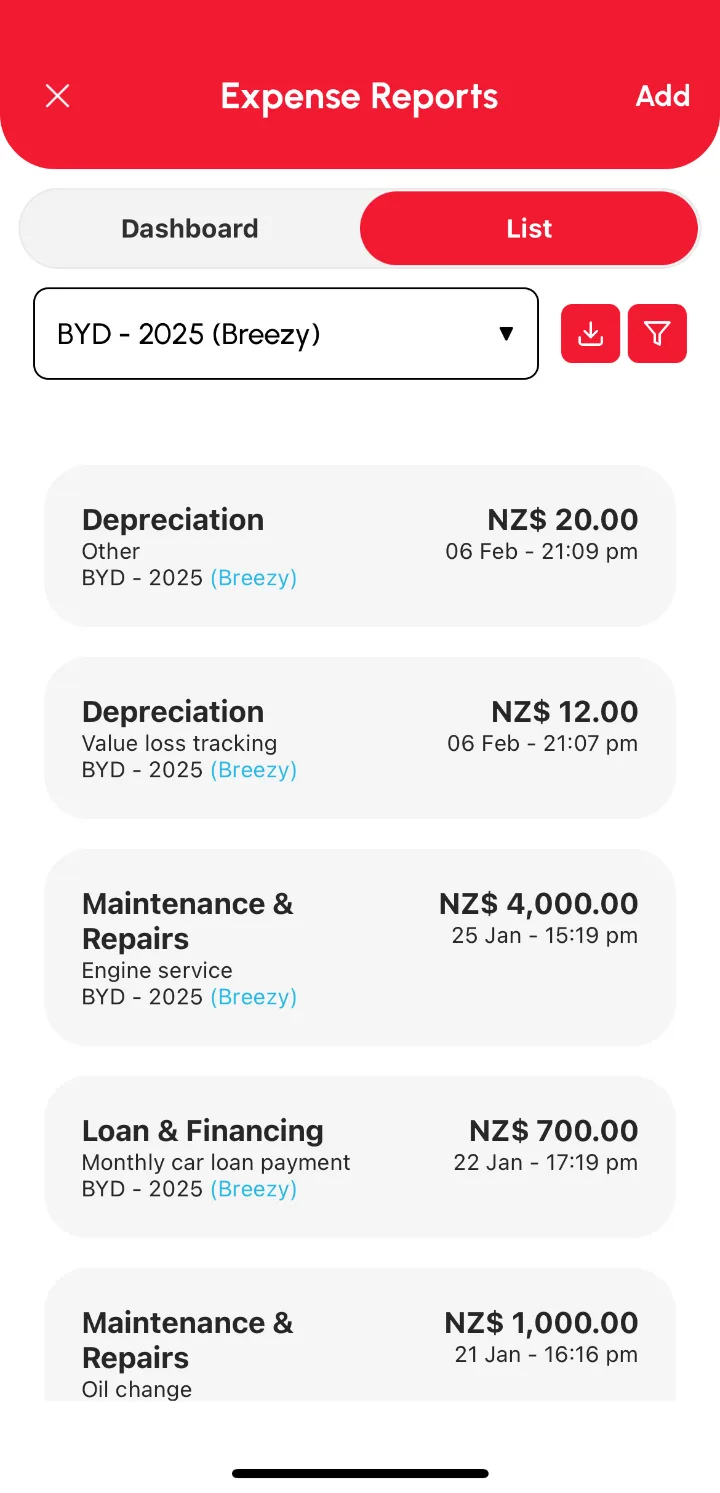
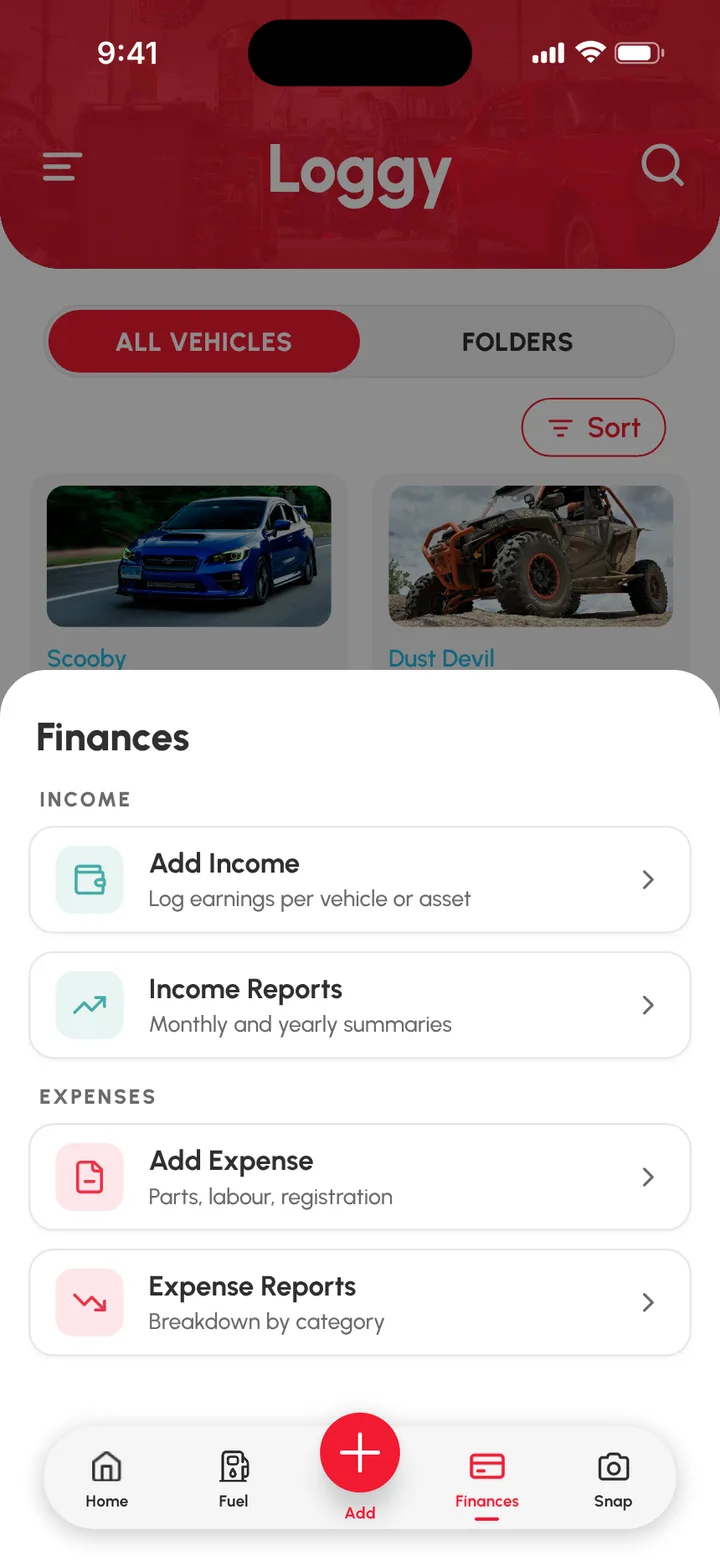
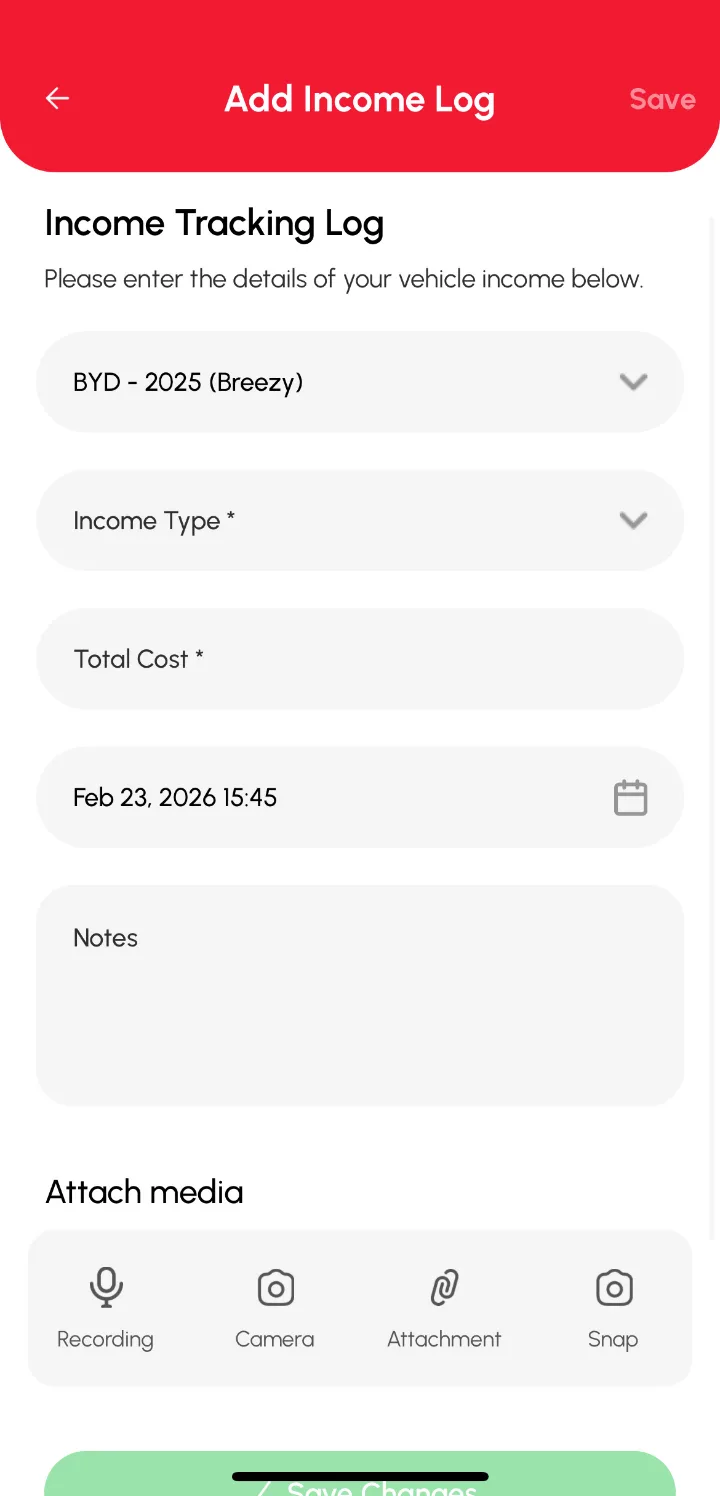
Loggy tracks your vehicle’s money in and money out. Tap the Finances tab on the bottom bar, then Add Expense or Add Income, fill in the form and tap Save. Each report has a dashboard and a full list.
Note: Income Reports are part of the Premium plan.
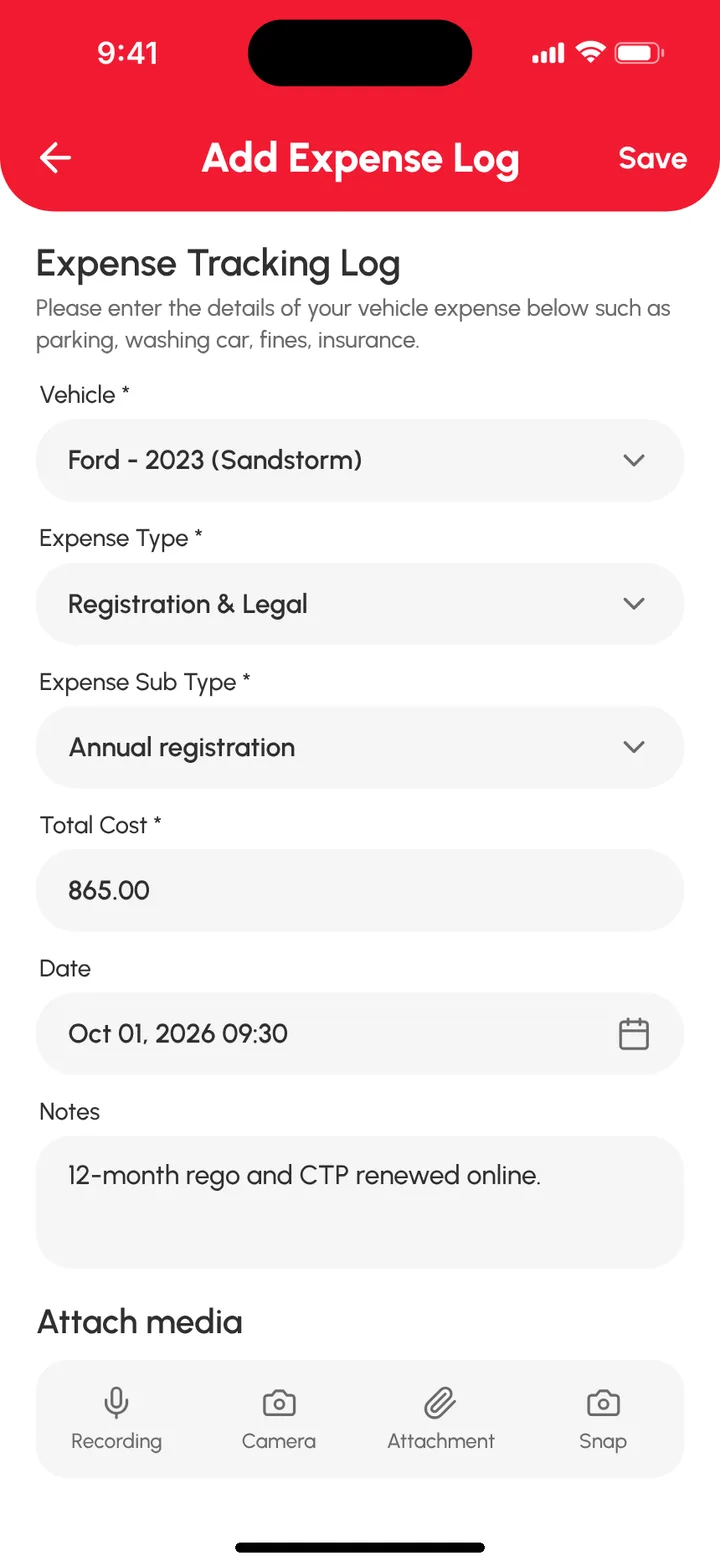
Add an expense
- Tap the Finances tab on the bottom bar.
- Under EXPENSES, tap Add Expense.
- Fill in the fields on the Add Expense Log form.
- Add any receipts or attachments.
- Tap Save.
The expense now shows on the List tab of the Expense Reports page.
Add income
- Tap the Finances tab on the bottom bar.
- Under INCOME, tap Add Income.
- Fill in the fields on the Add Income Log form.
- Add any attachments.
- Tap Save.
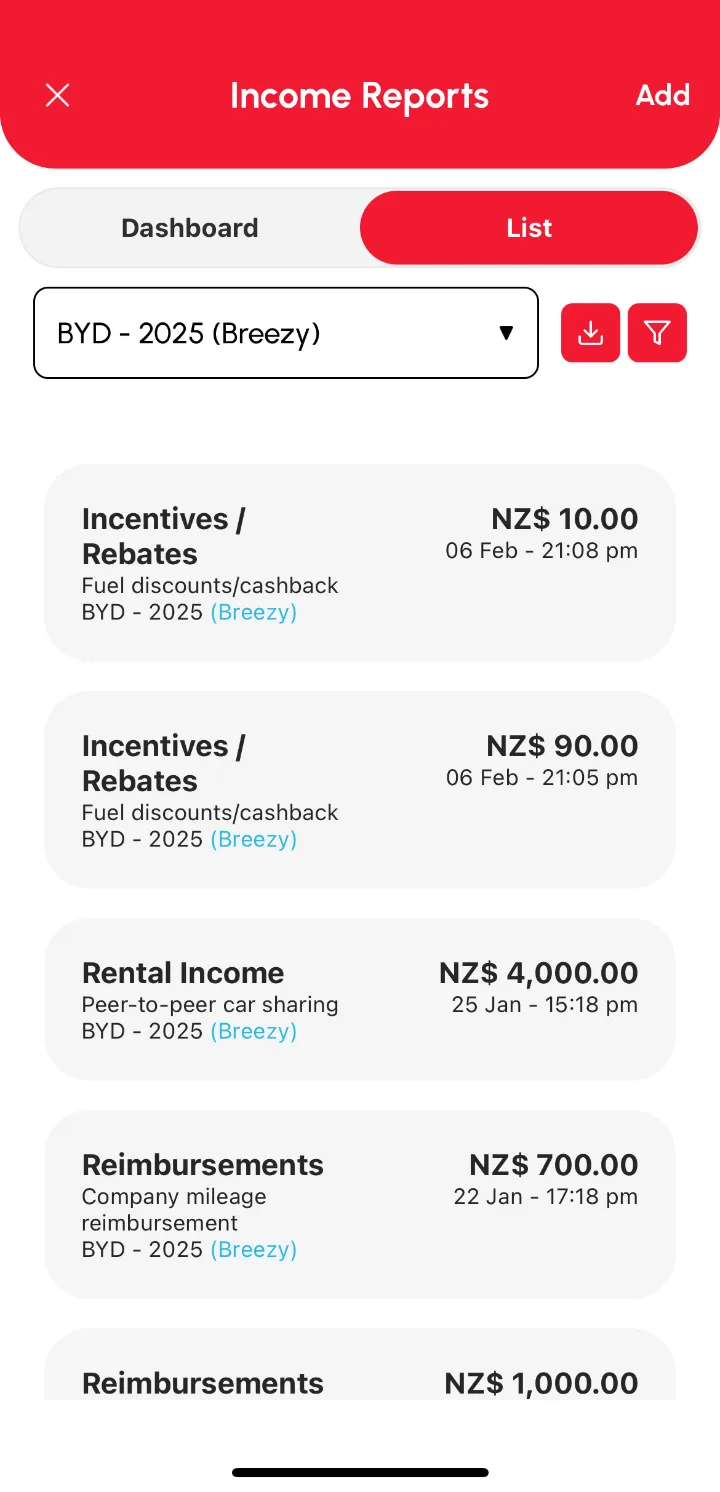
The income now shows on the List tab of the Income Reports page.
Read your reports
Open them from the Finances tab (Income Reports or Expense Reports), or from the side menu under Reports. Both have two tabs:
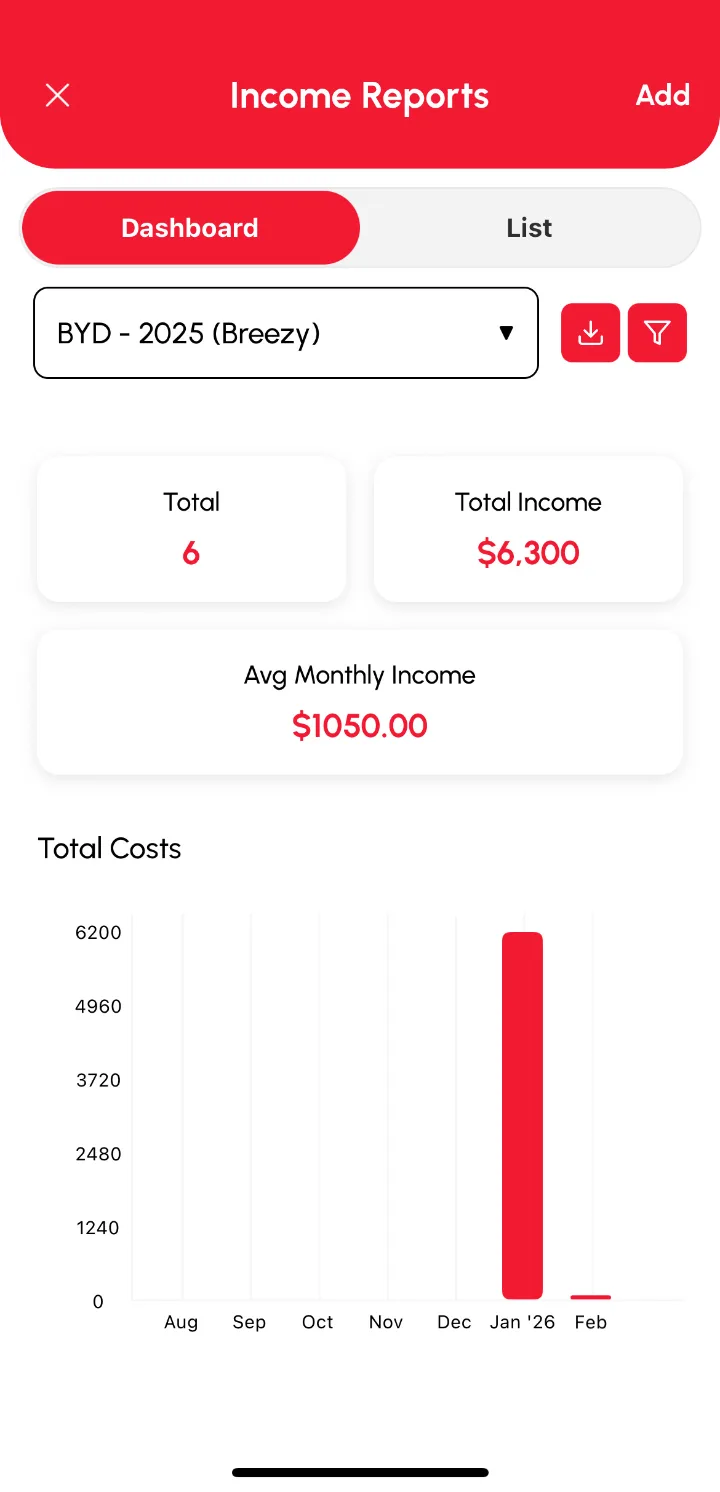
- Dashboard: stats and charts for a date range.
- List: every log with its details.
Income Reports
Expense Reports