Download reports (PDF or CSV)
Download Reports exports your fuel, expense and income data as a PDF or CSV. Go to any Reports page, tap Download next to the vehicle filter, pick the reports, file type, vehicle and dates, and tap Generate Report.
Note: Download Reports is part of the Premium plan.
How to download a report
- Go to the Reports Overview, Fuel Reports, Income Reports or Expense Reports page.
- Tap Download next to the vehicle filter.
- Tick the report types you want.
- Choose PDF or CSV.
- Select a vehicle.
- Enter a Start Date and End Date.
- Tap Generate Report.
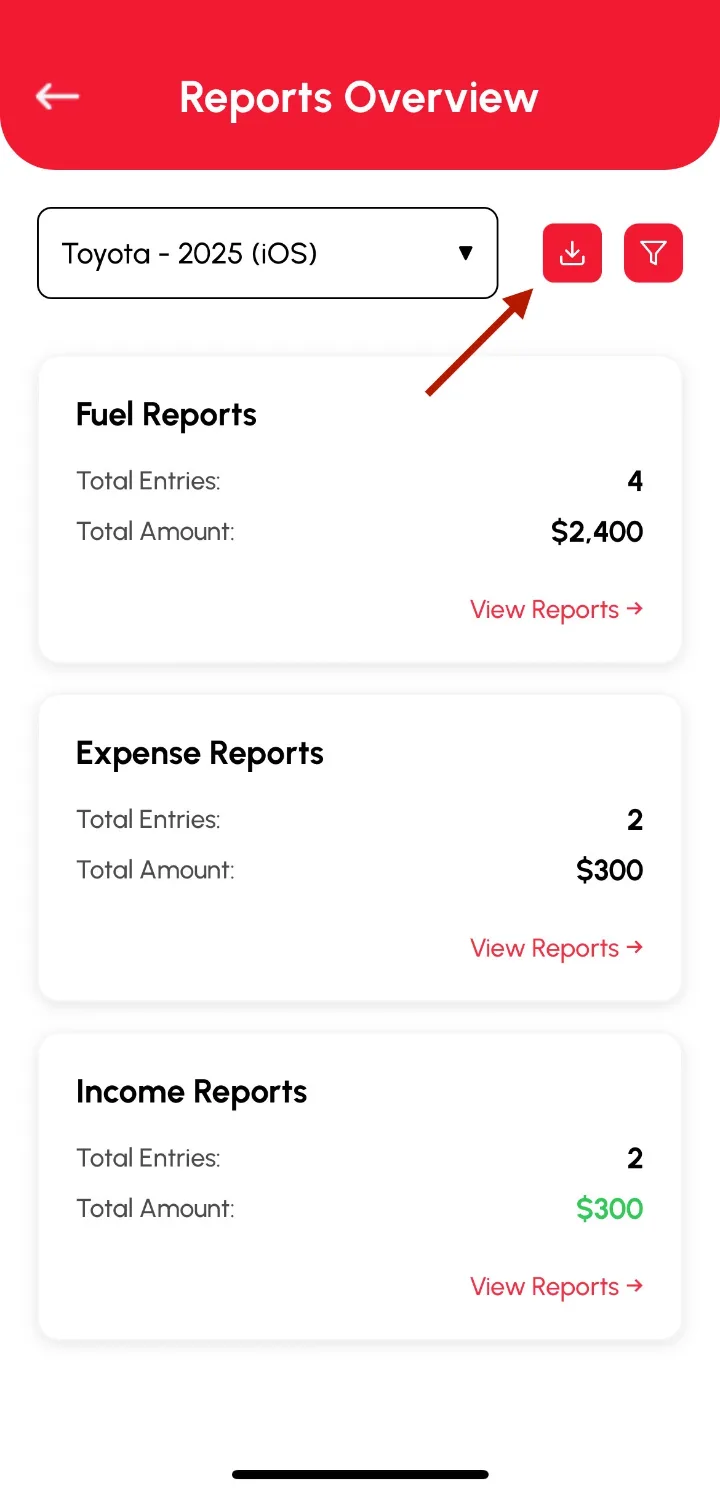
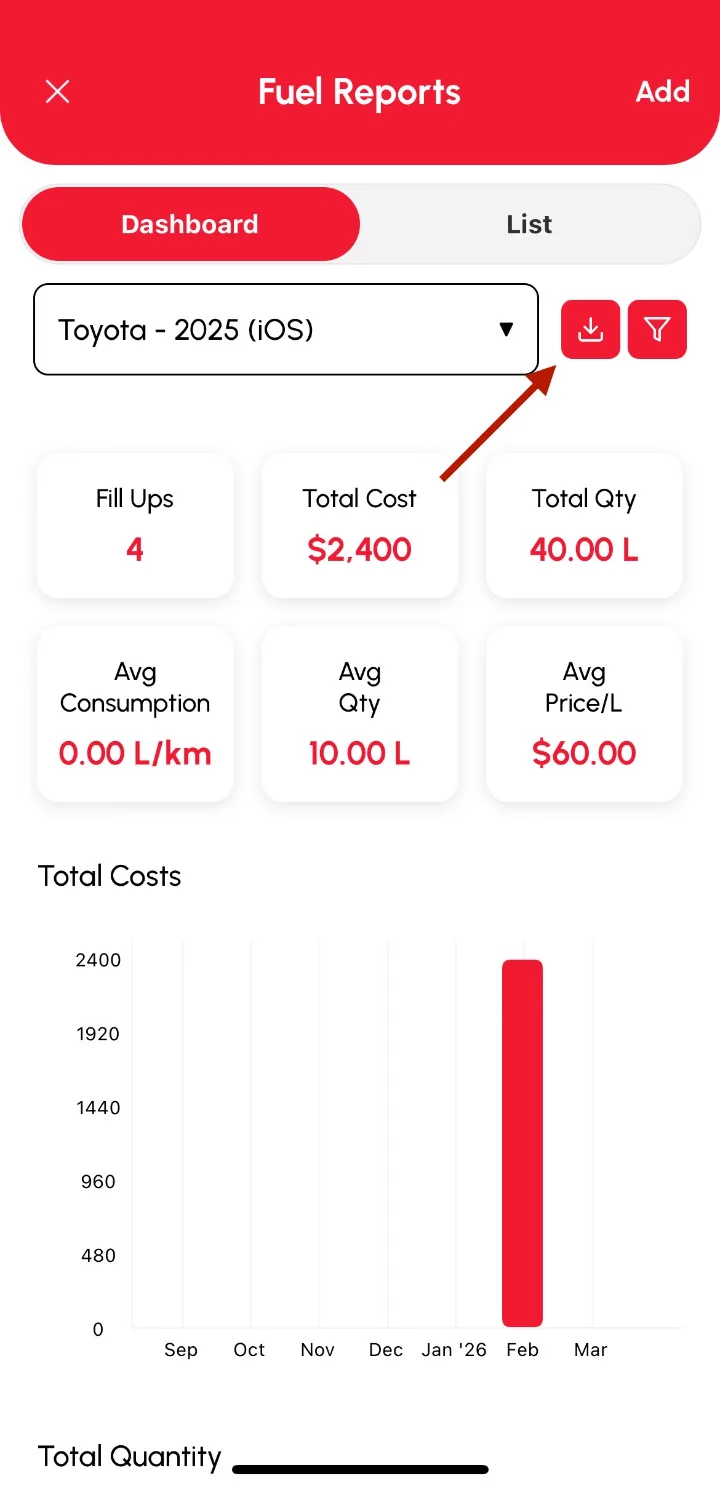
Your file includes the details of your fuel, expense and income logs.
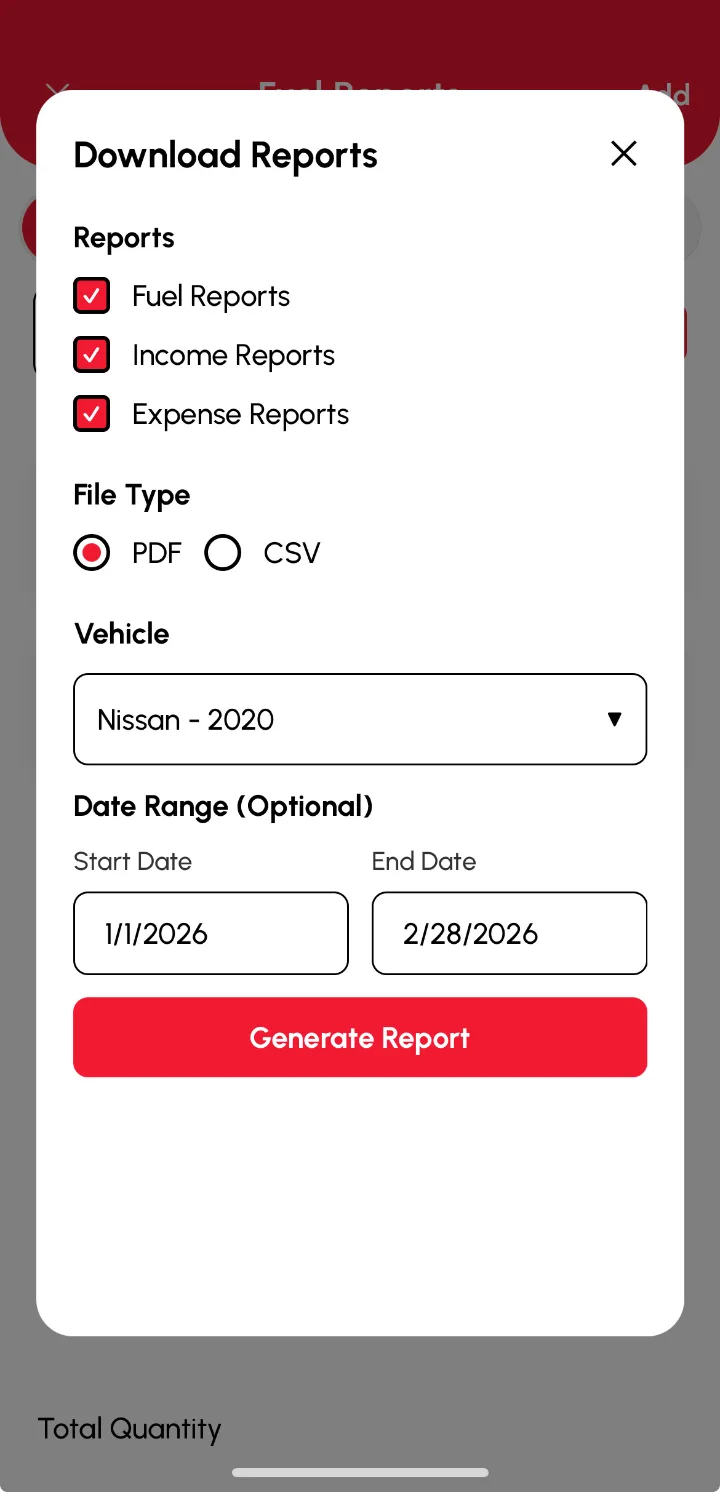
PDF or CSV?
- PDF can put fuel, expense and income reports together in one file.
- CSV always creates a separate file for each report type. Handy for spreadsheets.