Track fuel refills
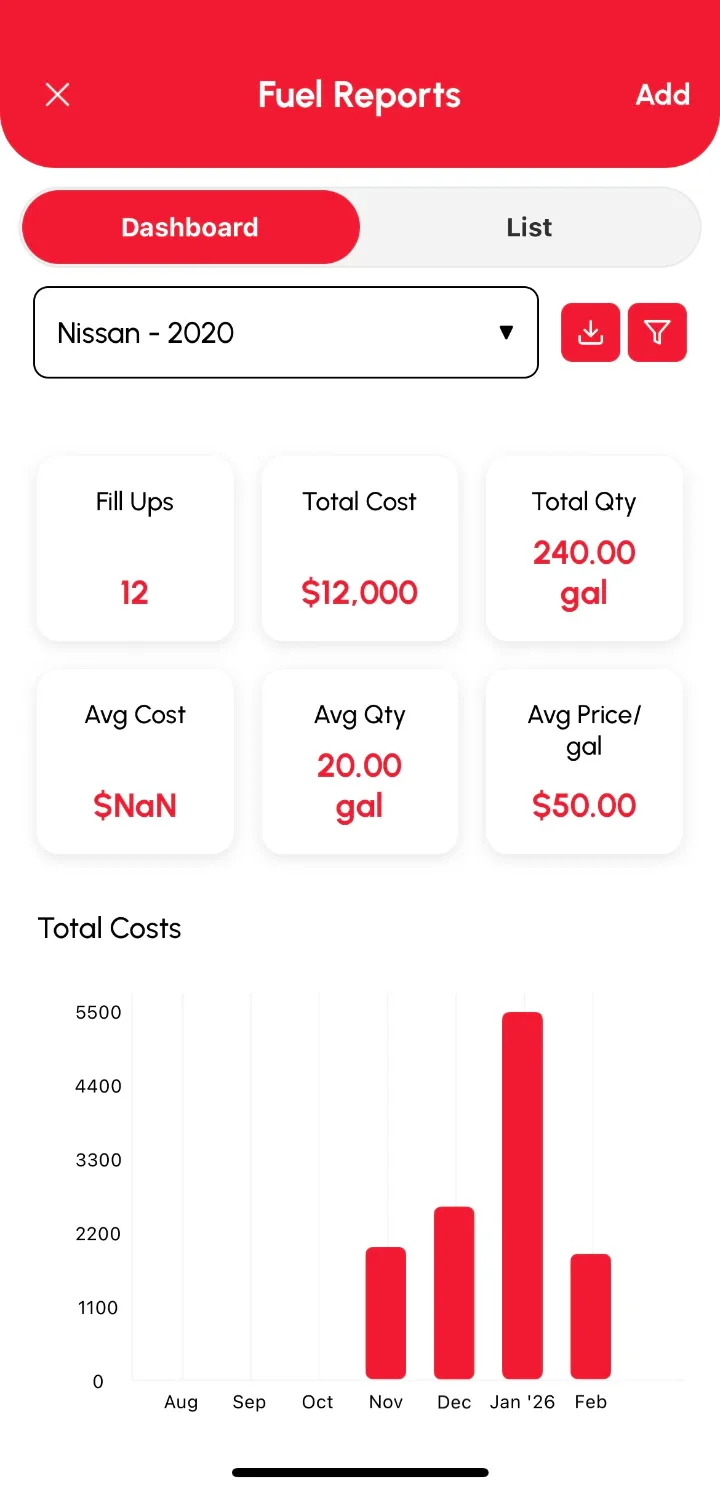
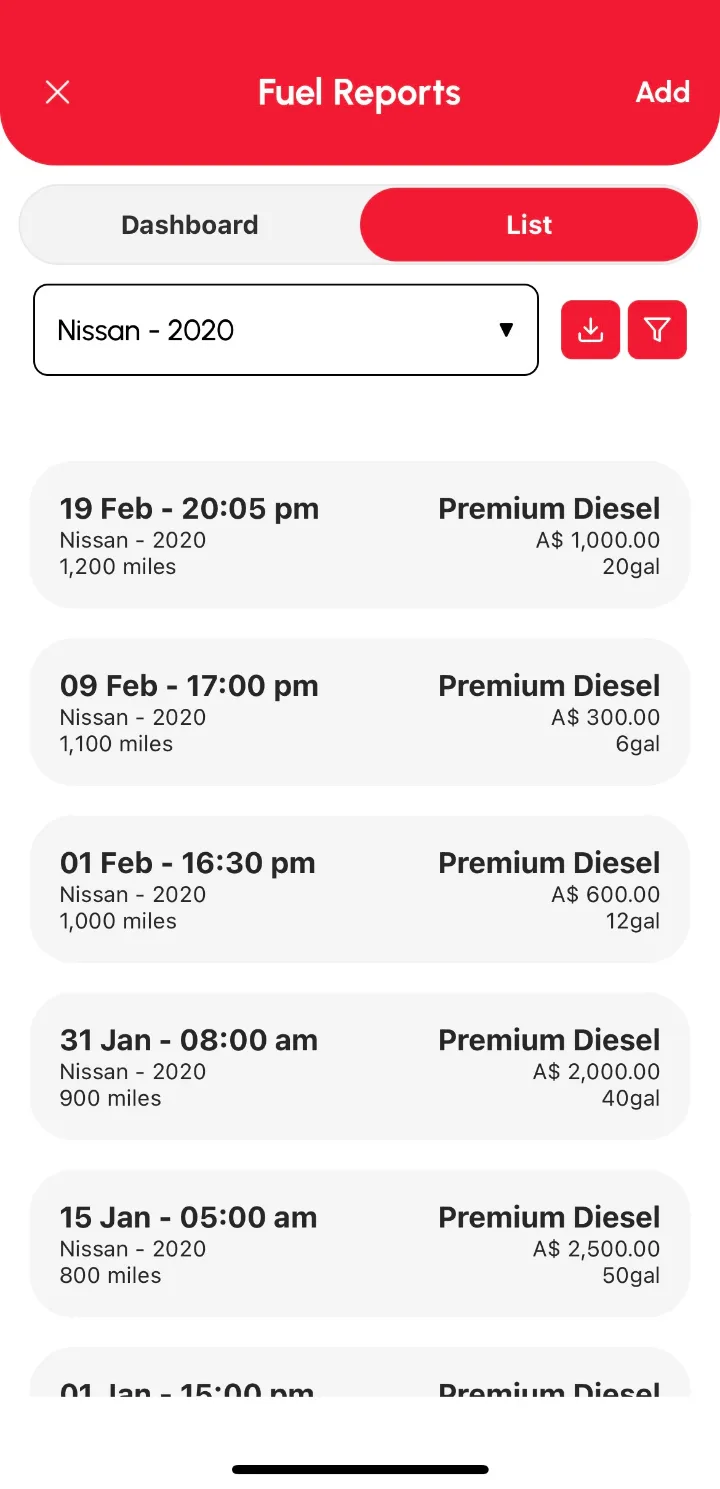
To log a fill-up in Loggy, tap the Fuel tab on the bottom bar, tap Add Fuel Entry, fill in the form and tap Save. The Fuel Reports page then shows your fuel stats and charts, plus a full list of refills.
Add a fuel log
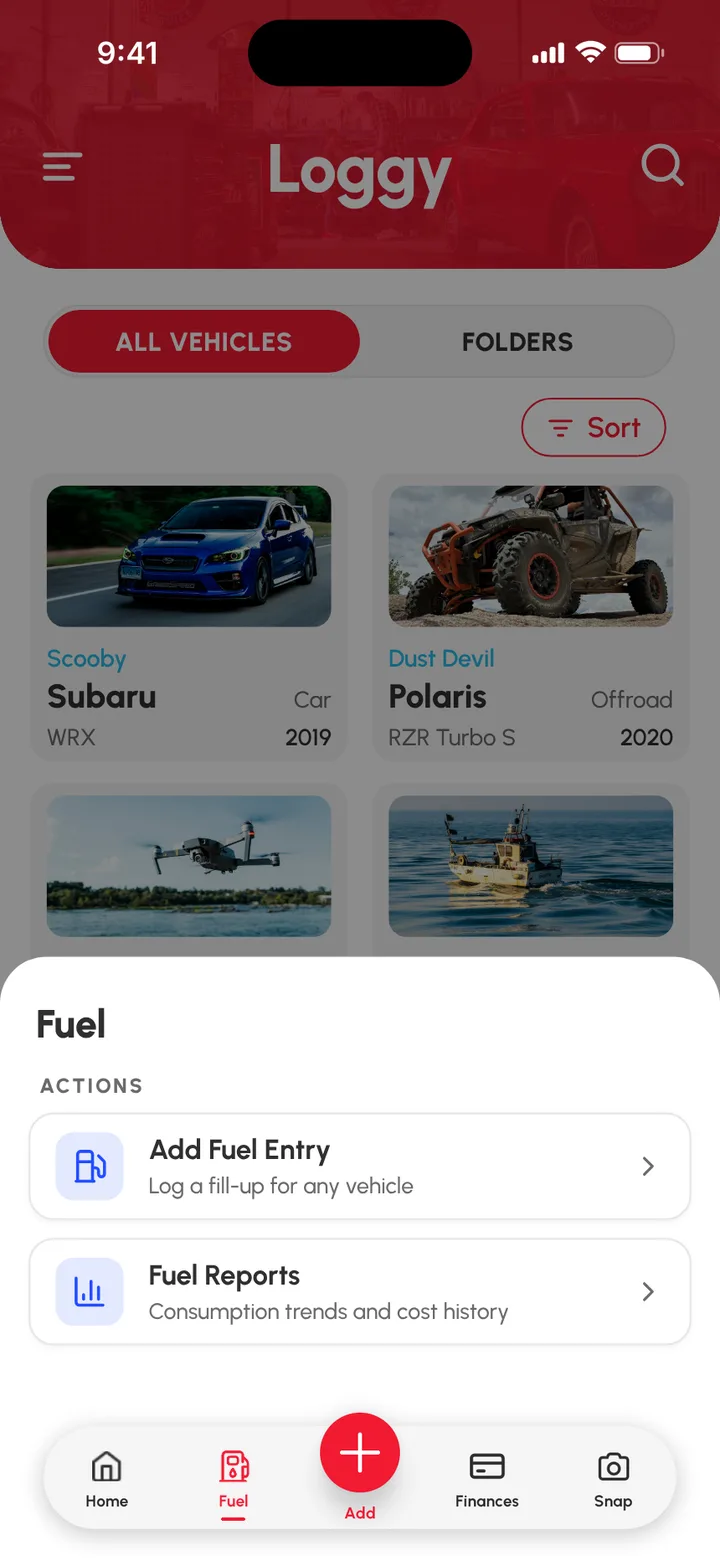
- Tap the Fuel tab on the bottom bar.
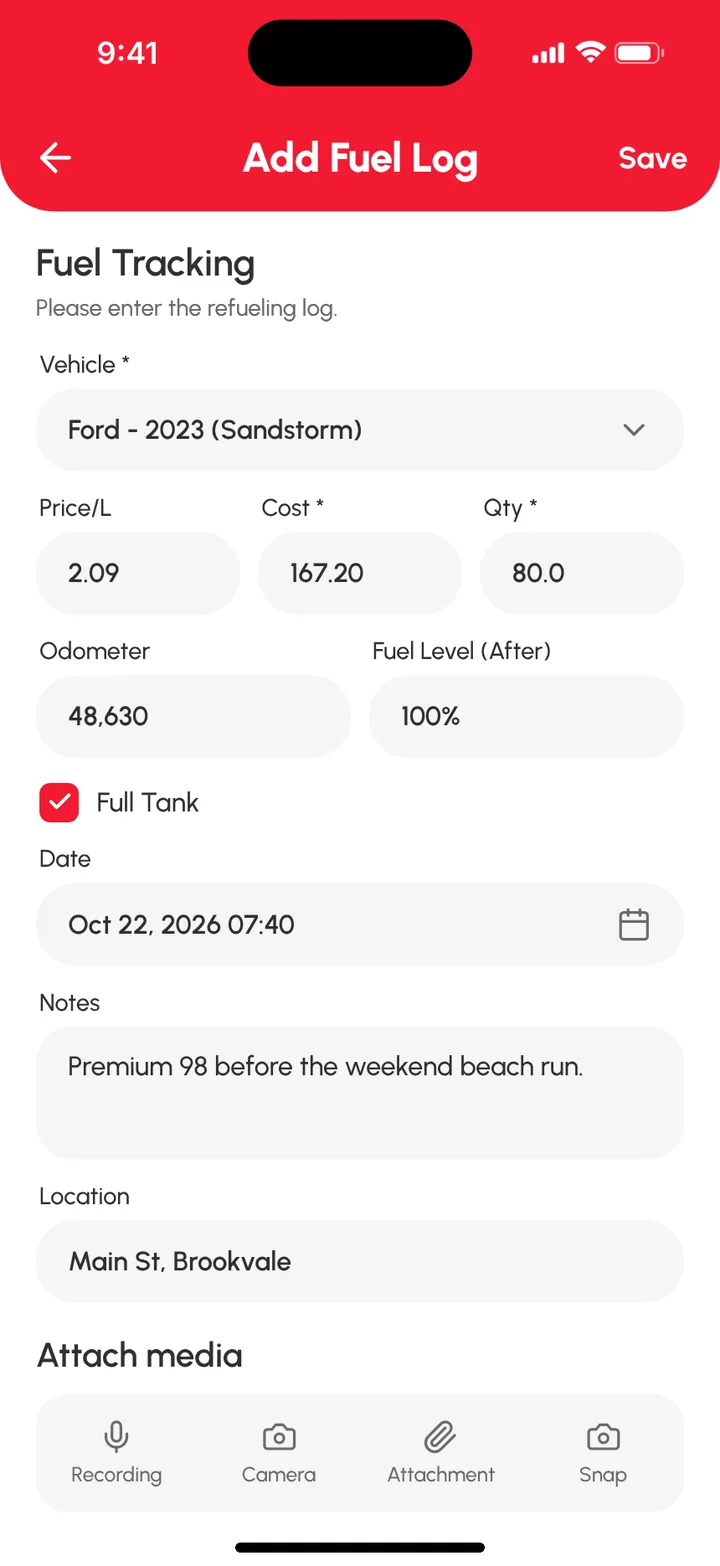
- Tap Add Fuel Entry (or open Fuel Reports and tap Add).
- Fill in the fields on the Add Fuel Log form.
- Add a photo of the receipt if you have one.
- Tap Save.
Your fuel log now shows on the List tab of the Fuel Reports page.
Read your fuel reports
Tap the Fuel tab, then Fuel Reports. You can also find it in the side menu under Reports › Fuel Reports.
The Fuel Reports page has two tabs:
- Dashboard: stats and charts for your vehicle’s fuel logs over a date range.
- List: every fuel log with its details.