Share a vehicle with other users
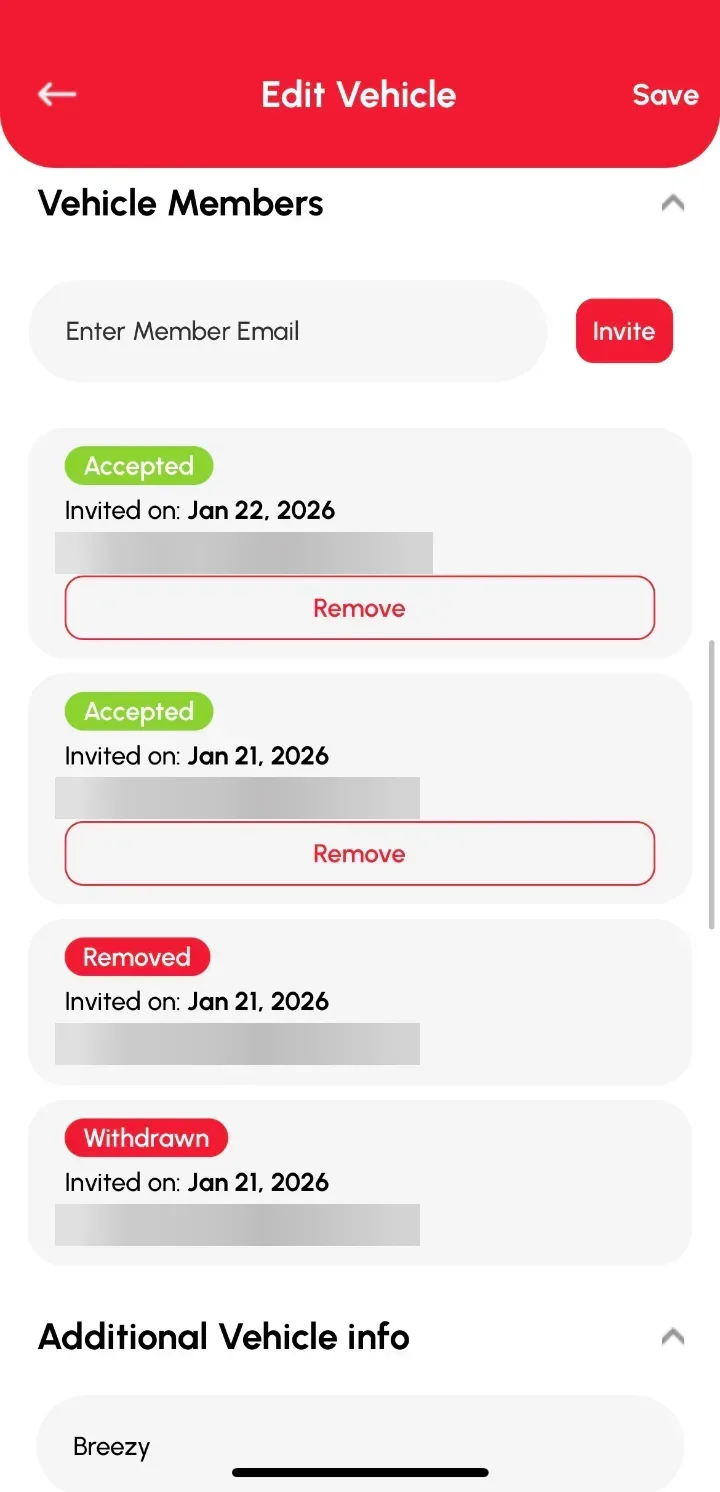
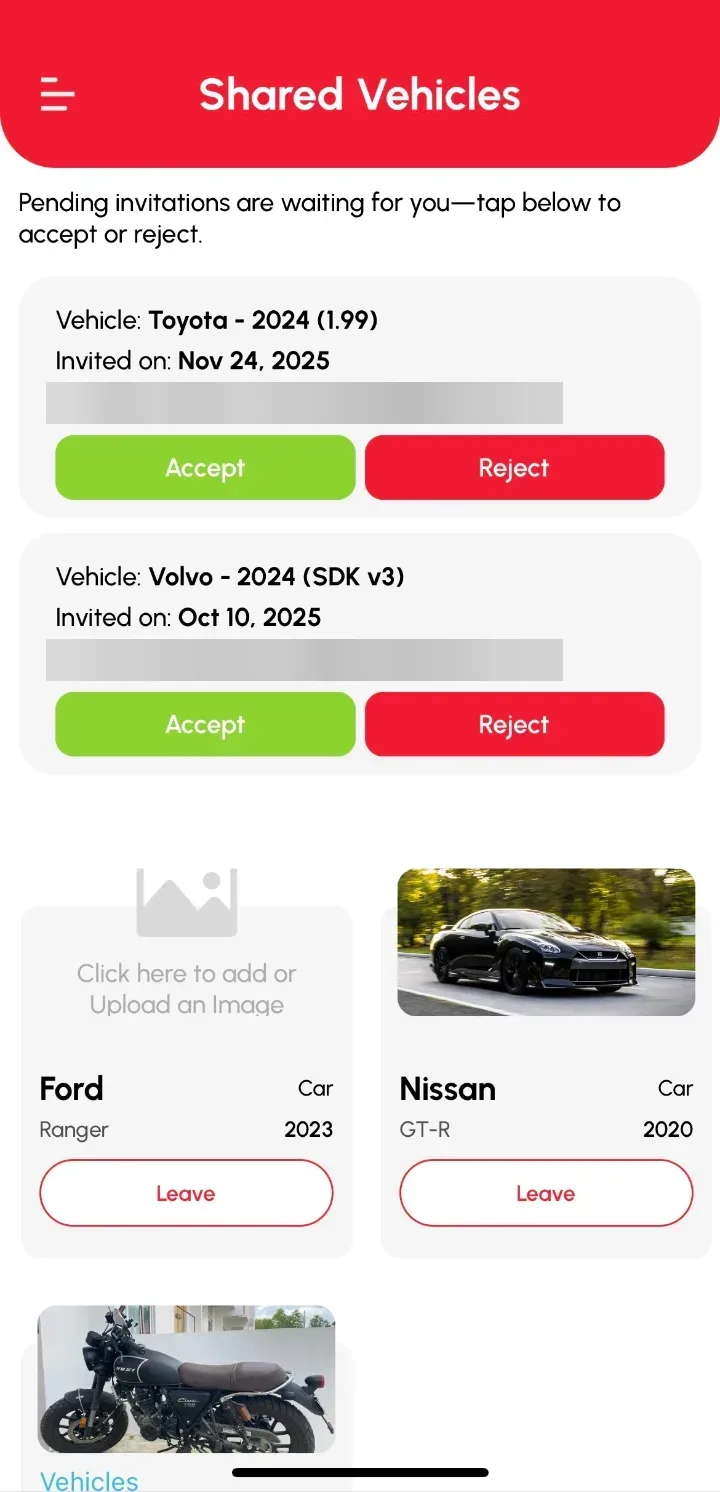
Vehicle User Management lets you share a vehicle with other Loggy users so you can all add logs to the same history. The owner invites people by email from Edit Vehicle › Vehicle Members, and they accept from Shared Vehicles in their menu.
Note: Vehicle User Management is part of the Premium plan.
There are two roles: Owner and Member.
Invite a member (owners)
- On the Home page or Vehicles page, select the vehicle you want to share.
- Tap the Info icon in the top-right corner of the Vehicle Records page.
- On Basic Details, tap Edit.
- On Edit Vehicle, scroll down and tap Vehicle Members.
- Enter the member’s email and tap Invite.
They’ll get an email inviting them to the vehicle.
Accept an invite (members)
- Tap the top-left drawer menu.
- Go to Shared Vehicles.
- Find the invitation card.
- Tap Accept.
The shared vehicle now shows in your vehicle list. You can see its existing logs and add your own.
Who can do what
| Owner | Member | |
|---|---|---|
| Send and withdraw invites | ✓ | |
| Remove members | ✓ | |
| Accept, decline or leave | ✓ | |
| Add logs | ✓ | ✓ |
| Edit and delete their own logs | ✓ | ✓ |
| Edit and delete other people’s logs | ✓ | |
| Edit the vehicle’s details | ✓ |
A removed member can be invited again.