Inspections and prestart checks
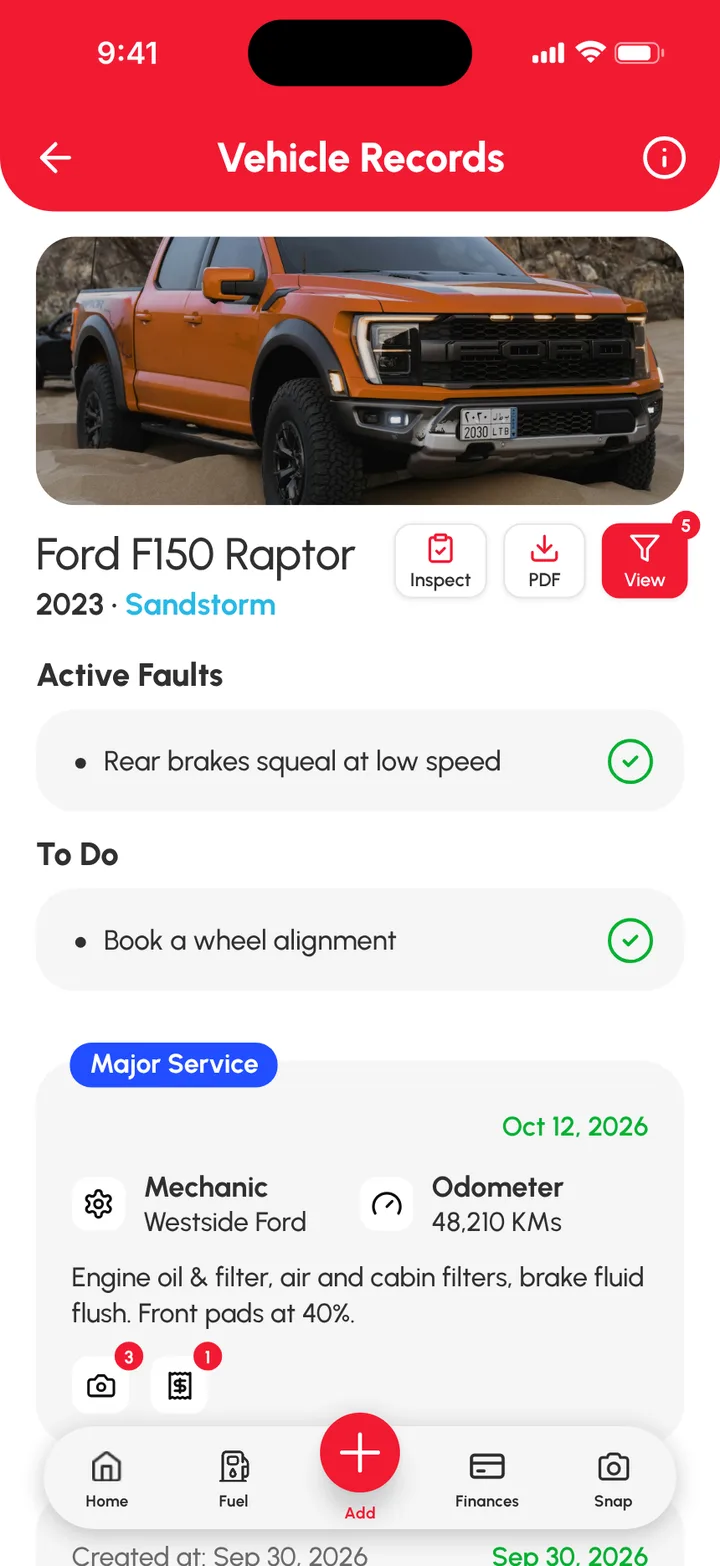
Loggy’s Inspections let you run a quick check before you drive or operate a vehicle. Open the vehicle and tap Inspect (or tap Add (+) › Inspection / Prestart), pick a template, mark each item P, F or N, then sign and tap Submit Inspection. The result is saved to the vehicle’s history and your inspections list.
Start an inspection
You can start one from three places:
- On the vehicle’s page, tap Inspect at the top.
- On the vehicle’s page, tap the red Add (+) button and choose Inspection / Prestart.
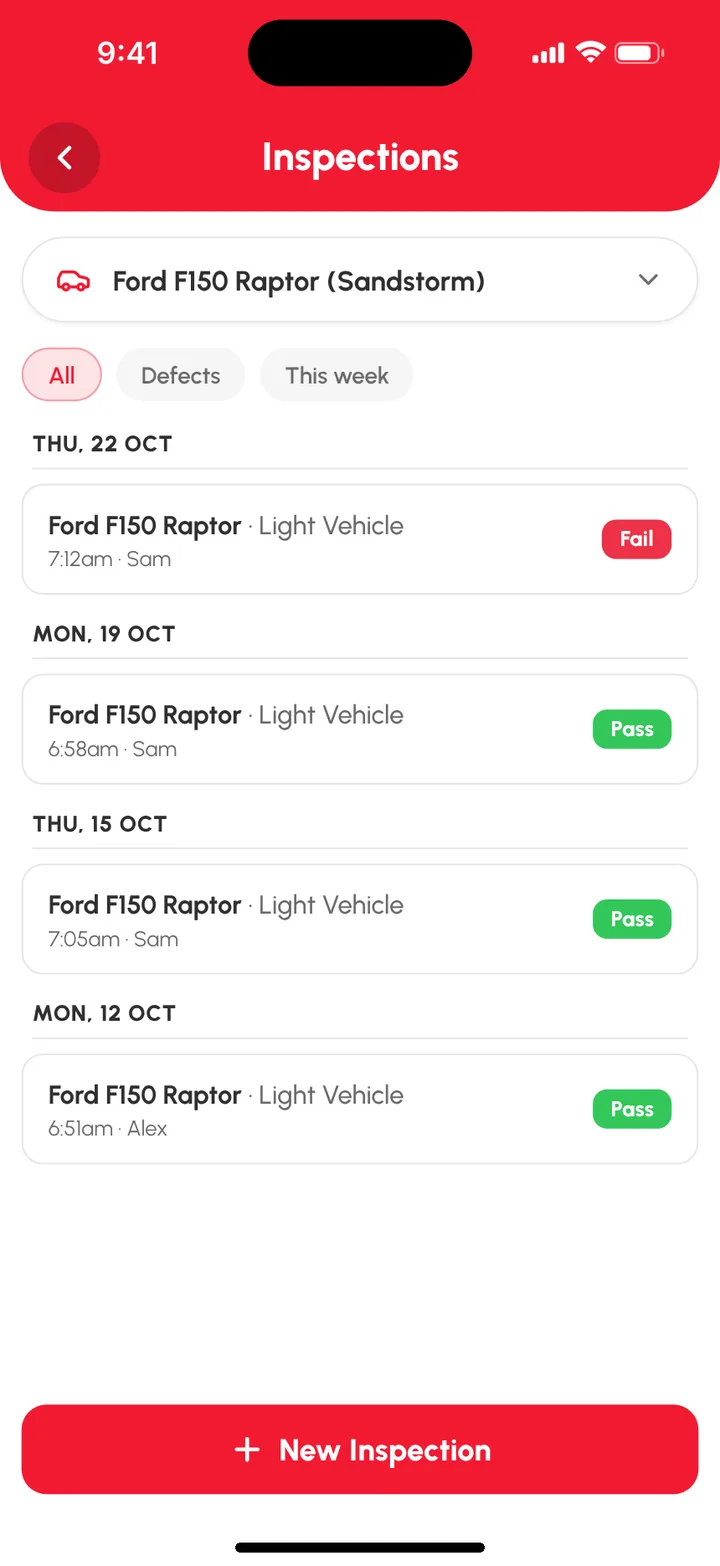
- Open the top-left menu, tap Inspections, then New Inspection.
Choose a template
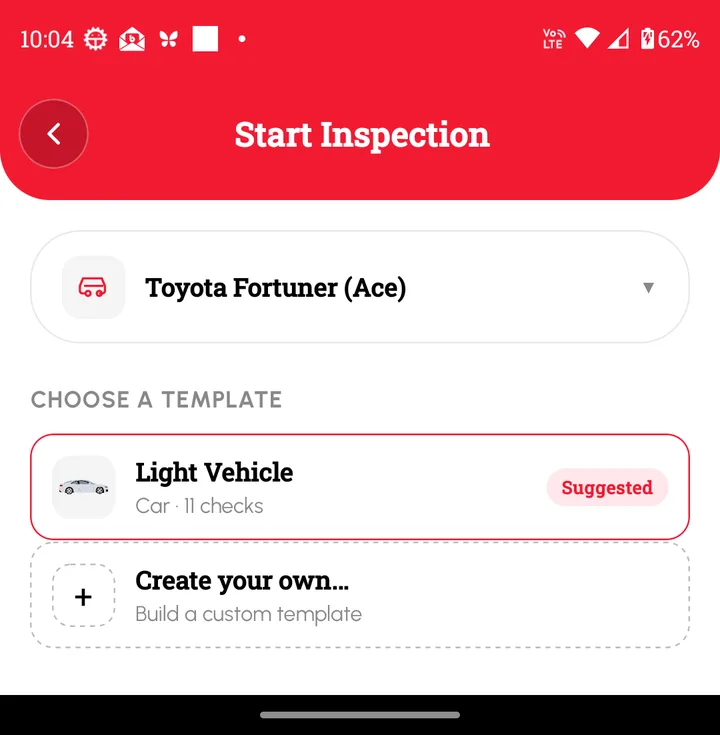
Pick the checklist to use. Light Vehicle (11 checks for a car) is suggested for you, or tap Create your own… to build a custom template for your vehicle or equipment.
Do the checks
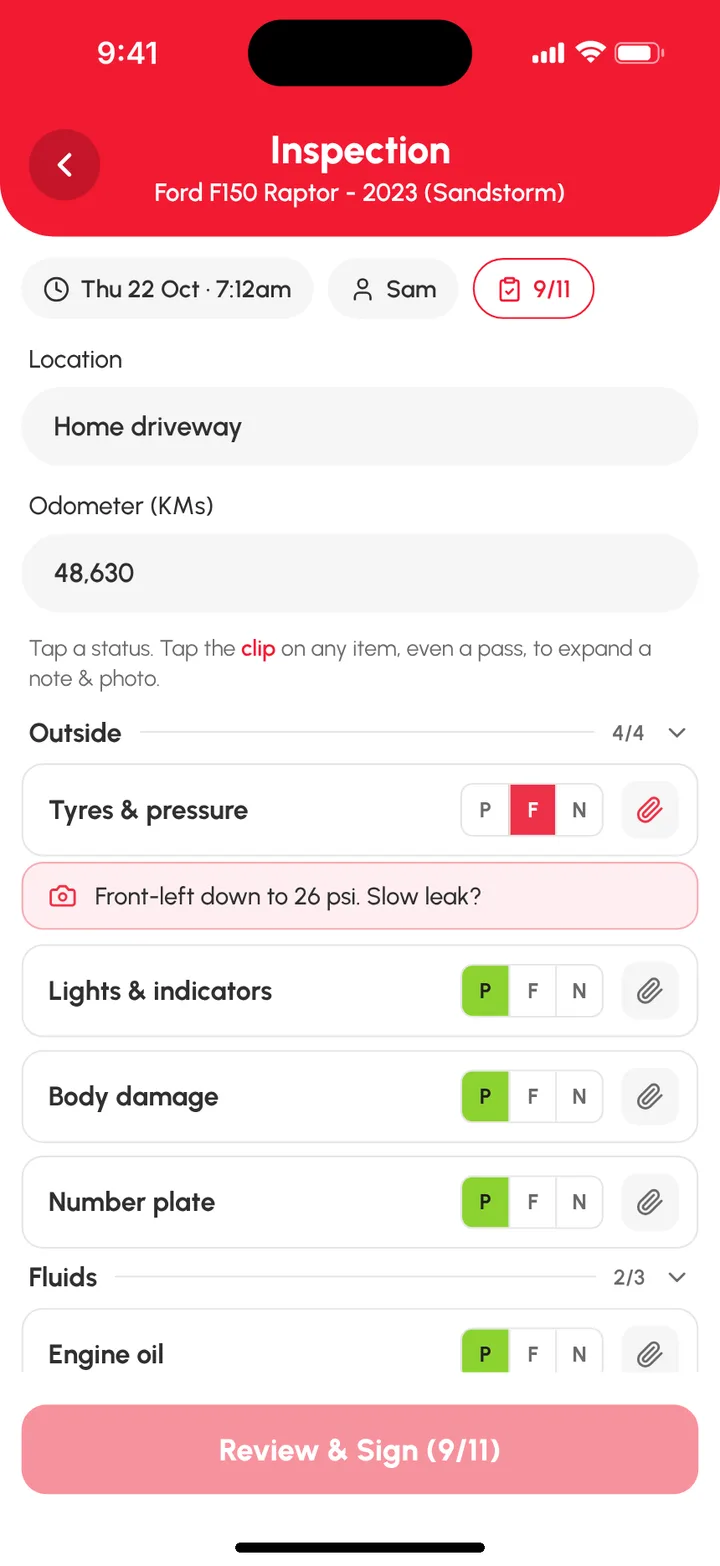
- Add the Location and Odometer reading.
- Go through each item and tap P (pass), F (fail) or N (not applicable).
- Tap the clip on any item, even a pass, to add a note and photo. For example: “Front-left down to 26 psi. Slow leak?”
- When every item is done, tap Review & Sign.
The light vehicle template covers:
| Section | Checks |
|---|---|
| Outside | Tyres & pressure, Lights & indicators, Body damage, Number plate |
| Fluids | Engine oil, Coolant, Washer fluid |
| Cab | Seatbelt, Horn, Wipers, Warning lights |
Sign and submit
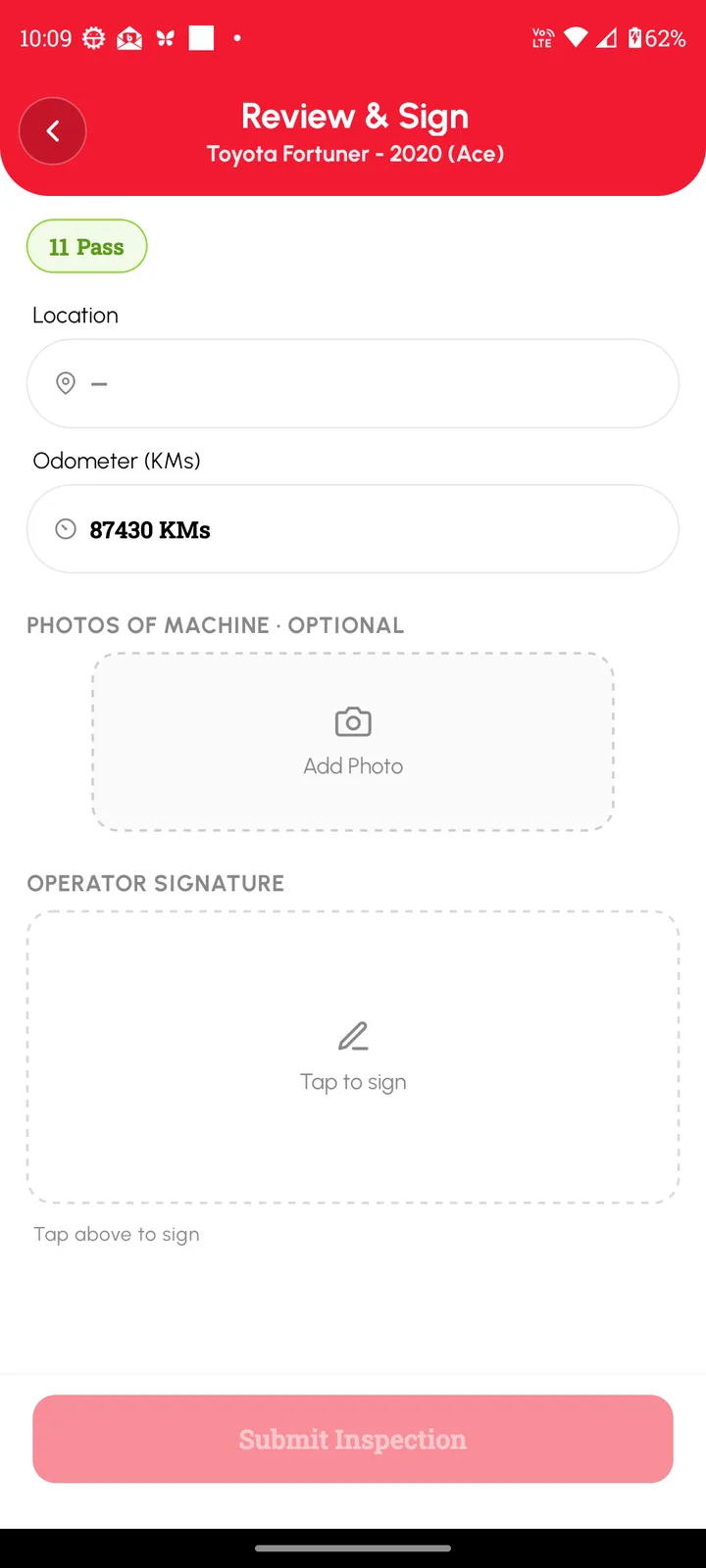
- Check the summary of passes and fails.
- (Optional) Add photos of the vehicle or machine.
- Tap the signature box, draw your signature and tap Confirm.
- Tap Submit Inspection.
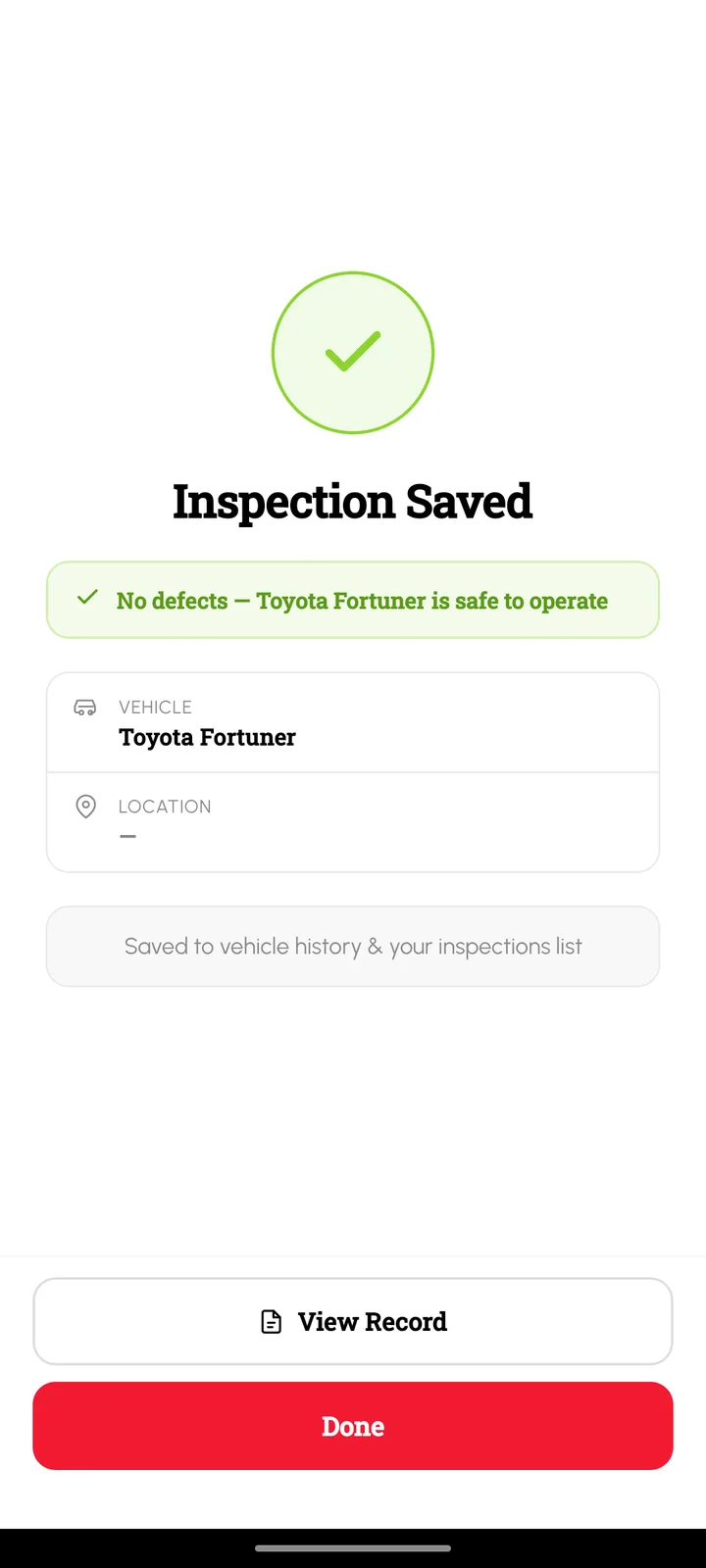
Loggy confirms the inspection is saved. If nothing failed, you’ll see “No defects” and that the vehicle is safe to operate. Tap View Record to open it, or Done.
See past inspections
Open the top-left menu and tap Inspections. Choose a vehicle at the top, then filter by All, Defects or This week. Each inspection shows the date, time, who did it and whether it passed or failed.
FAQs
Q: What happens when an item fails? A: Failed items show up in the vehicle’s Active Faults, so you can track and fix them. See Track faults.
Q: Can I make my own checklist? A: Yes. When you start an inspection, tap Create your own… to build a custom template.