Delete your Loggy account
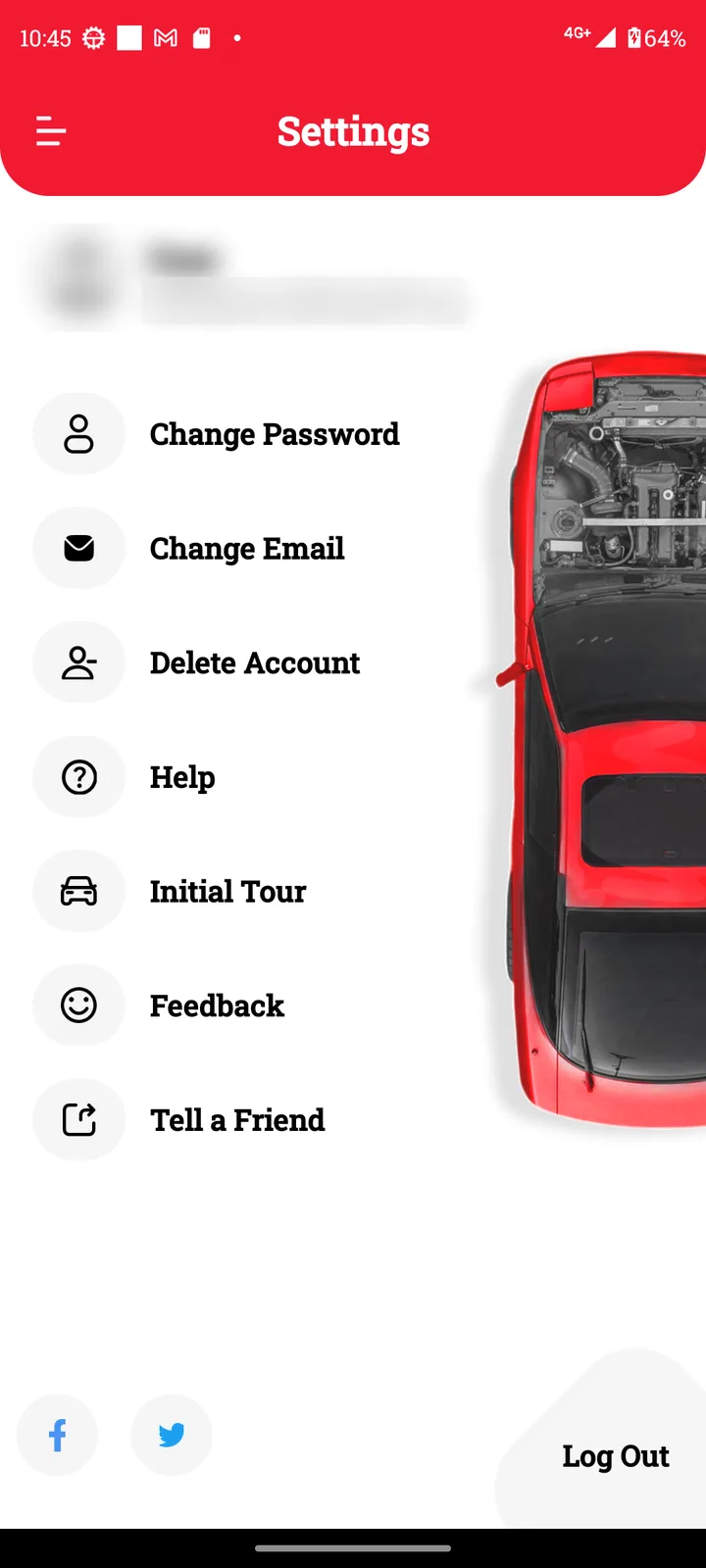
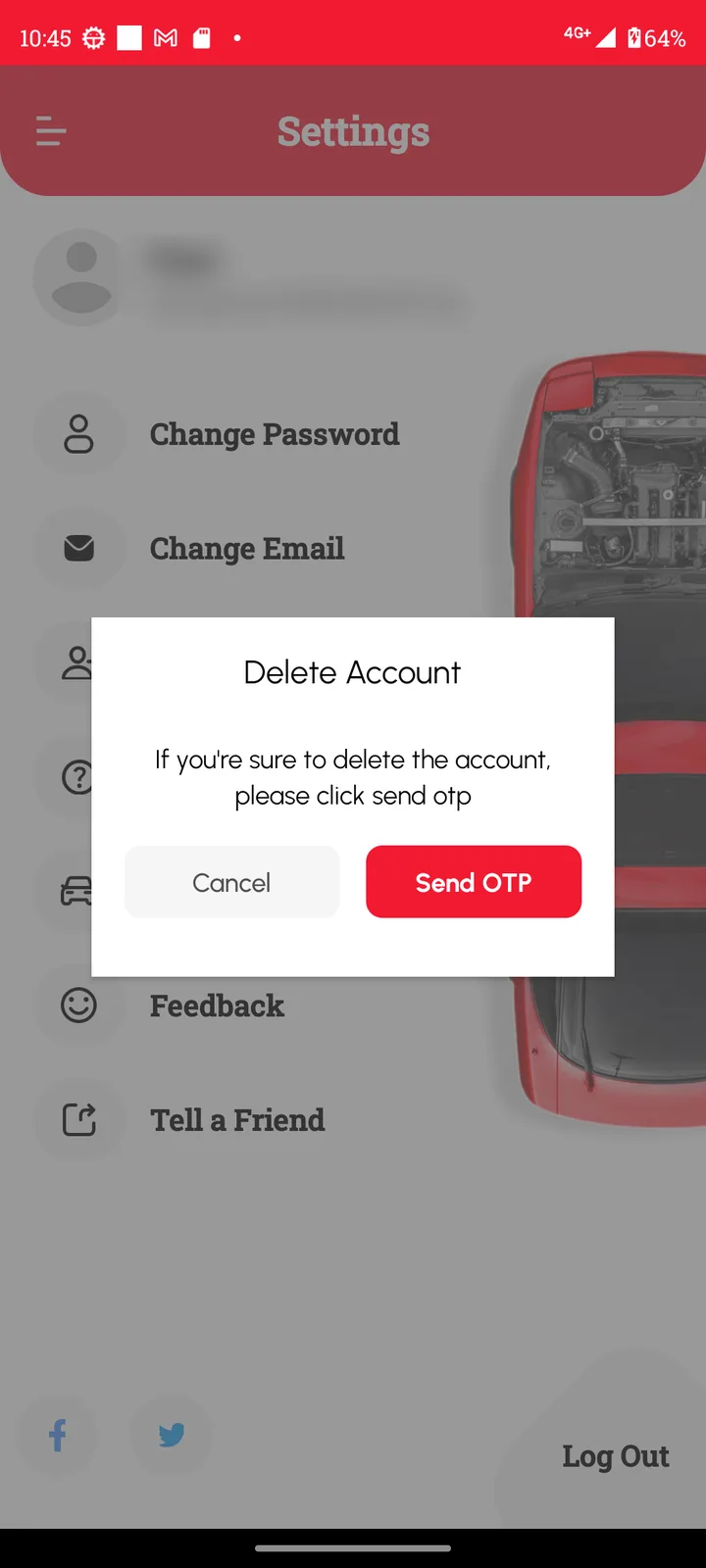
To delete your Loggy account, open the top-left menu, tap Settings, tap Delete Account, then tap Send OTP and confirm with the one-time code we send you. You do it inside the app, so you don’t need to email anyone.
Deleting your account is a big step, so it’s worth a minute of prep first.
Before you delete
- Save any history you want to keep. Download a PDF of each vehicle’s records, so you still have them.
- Cancel Premium if you have it. Deleting your account or the app doesn’t stop billing. Cancel in Google Play or the App Store first. Step-by-step
- Selling a vehicle instead? You may not need to delete anything. You can transfer it to the new owner.
How to delete your account
- Open Loggy and tap the menu icon at the top left.
- Tap Settings.
- Tap Delete Account.
- A prompt asks if you’re sure. Tap Send OTP to carry on, or Cancel to stop.
- Enter the one-time code (OTP) we send to your email, and follow the prompts to confirm.
Deleting your account removes your access to it, including your vehicles and logs, so make sure you’ve saved what you need. If you have questions about your data, email support@loggy.com.
FAQs
Q: Can I delete my account without the app? A: The delete option is inside the Loggy app, under Settings. If you can’t get into the app, email support@loggy.com from the address on your account and we’ll help.
Q: Does deleting my account cancel Premium? A: No. Premium is billed by Google Play or the App Store, so cancel it there. How to cancel
Q: I just want to change my email or password. A: You don’t need to delete anything. Go to Settings and tap Change Email or Change Password. Change your password