See the right logs with View options
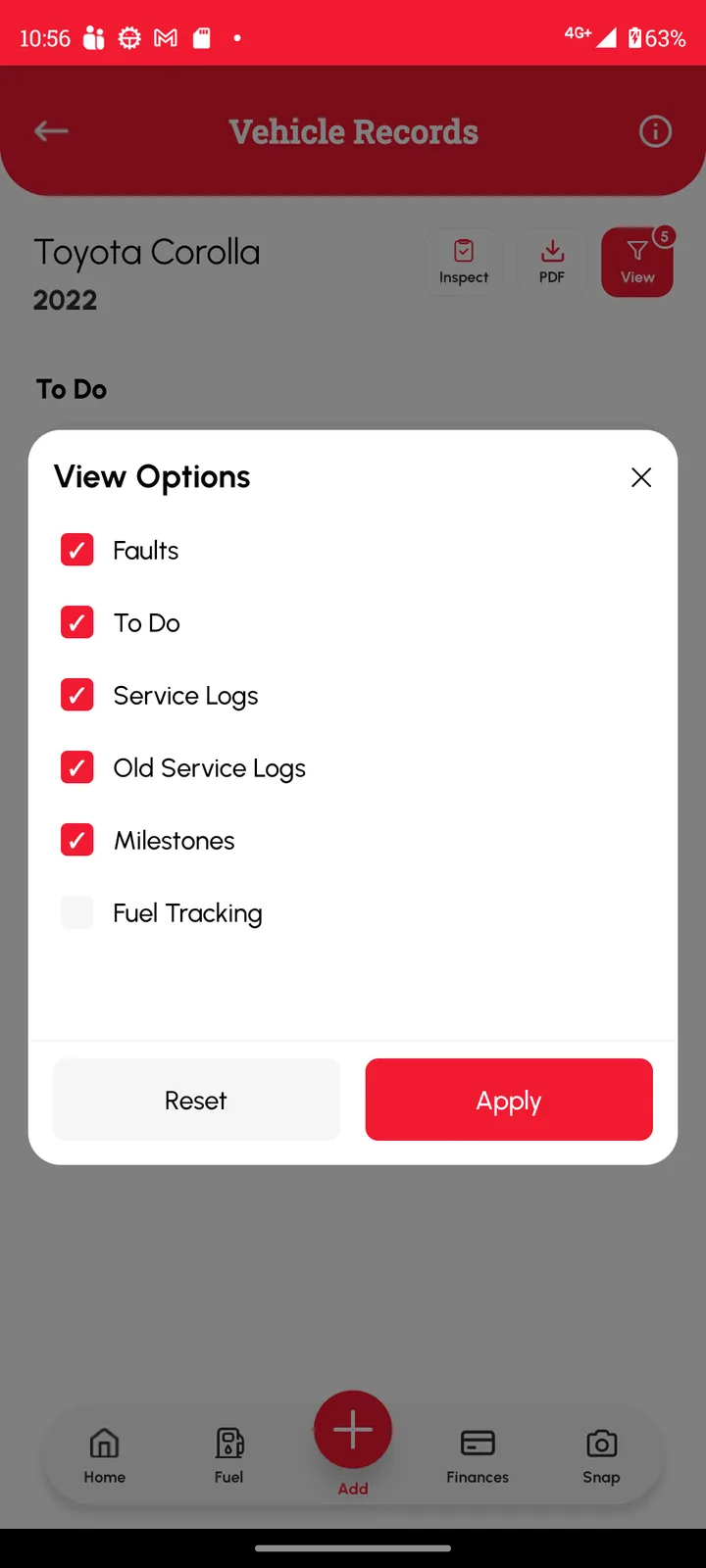
A vehicle’s page only shows the kinds of log you’ve ticked. Tap the View button at the top of the vehicle page to choose what shows. If a log seems to be missing, this is the first place to look.
What is switched on to begin with
Every vehicle starts with five kinds of log showing:
- Faults
- To Do
- Service Logs
- Old Service Logs
- Milestones
Fuel Tracking starts switched off. That means a fuel fill-up you save won’t appear on the vehicle’s Timeline until you switch it on. It’s always on the Fuel Reports page.
The small number on the View button shows how many kinds are ticked.
How to change what shows
- Open the vehicle.
- Tap View at the top right, next to Inspect and PDF. The View Options box opens.
- Tick the kinds of log you want to see, and untick the ones you don’t. Reset puts the ticks back to how they started.
- Tap Apply.
Good to know
- Income and expense entries aren’t in View options. They show in your income and expense reports, not on the Timeline.
- A vehicle with no logs showing says “No logs found”. If you’ve only logged fuel, that’s why: switch on Fuel Tracking.